GTA 6 How to Pause on PS5: press Options, the button beside the DualSense touchpad. On Xbox Series X|S, press Menu (the three-line button). You’ll go straight into the pause screen, with the map, progress and settings accessible from its menus.
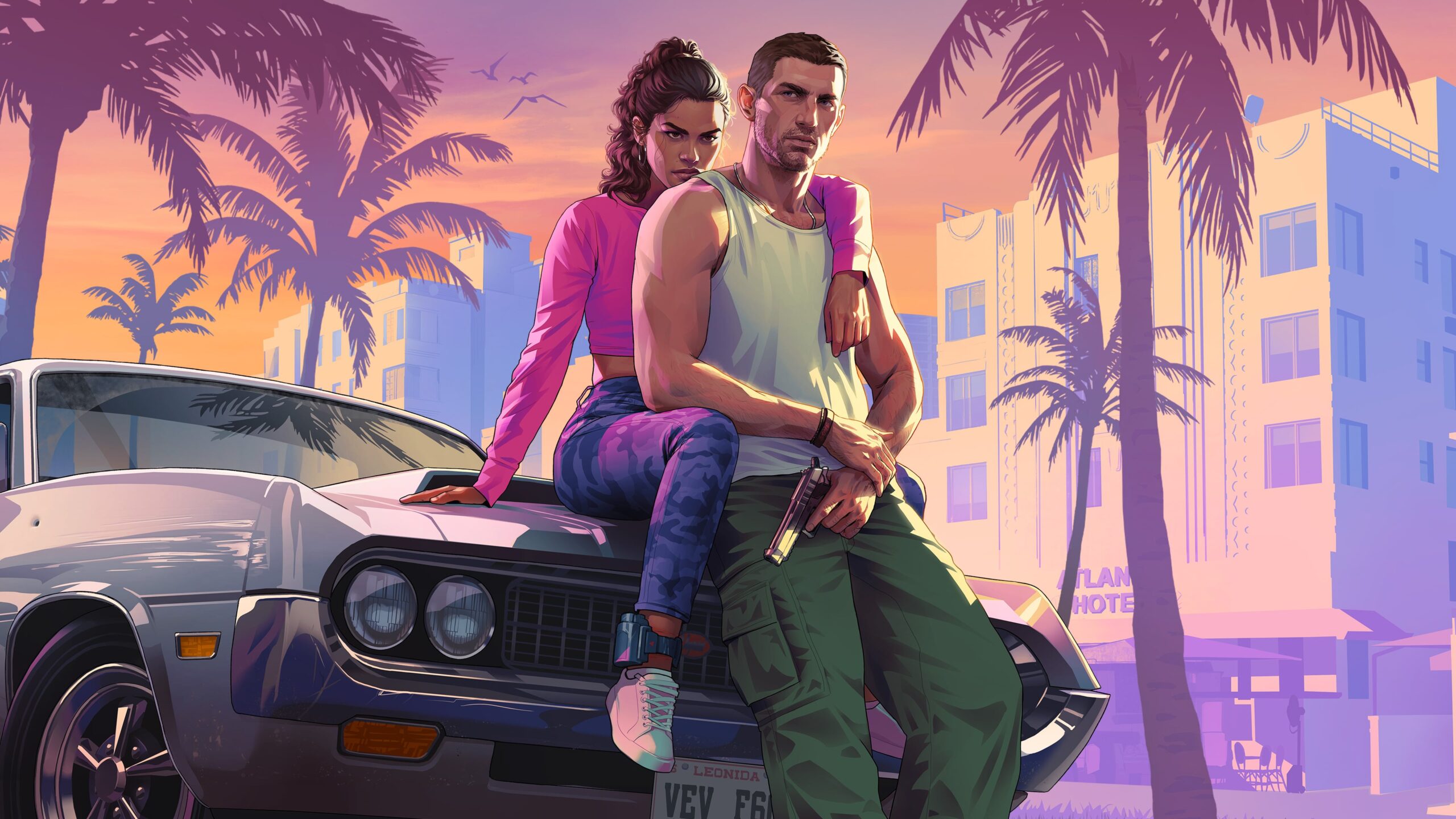
In single-player, the pause freezes game time and the action happening around Jason or Lucia. You can check directions or step away even in the middle of a chase. It’s also where you’ll find settings and save options, although not every item is available during every mission.
GTA 6 How to Pause on PS5 and Xbox Series X|S
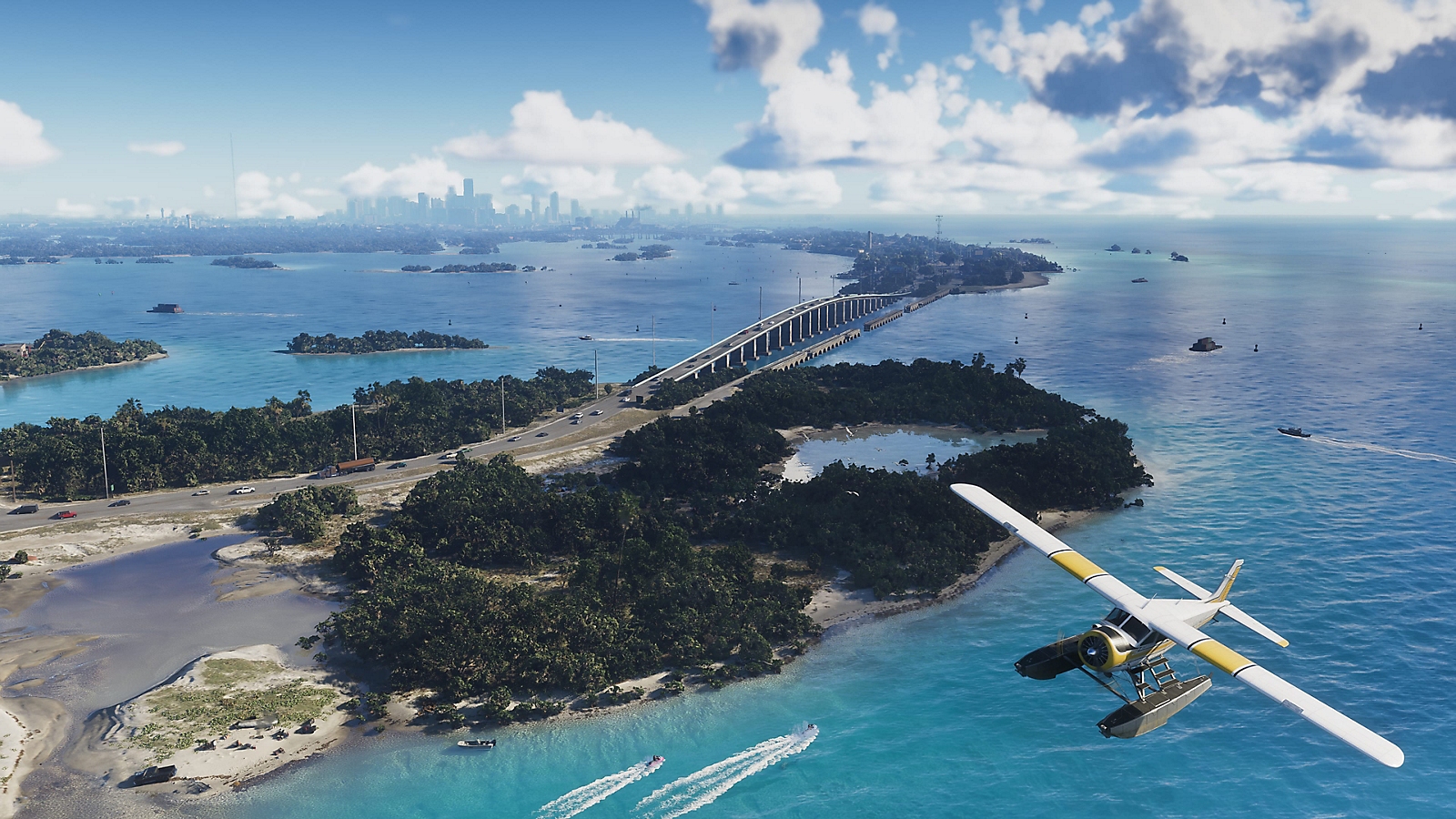
- PS5: press Options, beside the DualSense touchpad.
- Xbox Series X|S: press Menu, to the right of the Share button.
- Use the pause tabs to select Map, Brief or Progress, or open the main menu for Settings.
- Return to gameplay using the on-screen back or resume control.
Another GTA 6 How to Pause shortcut is the PS5 touchpad or Xbox View button, which opens the map directly. That’s handy when all you need is a waypoint and don’t want to work through the larger menu. If you need to change button layouts or display settings, use Options and select Settings. Rockstar’s official support page confirms Pause Menu → Settings.
Does the game clock stop when you pause?
Yes, in the story campaign the world stops while the game is paused. A police chase, a fight or another ordinary event won’t keep progressing behind your map. When you close the screen, the action resumes where you left it. You don’t lose a mission just because you’ve spent a few minutes reading an objective.
Pausing won’t make a danger disappear, though. If you stop in the middle of a shootout, the enemies are still waiting when you resume. If you’re changing controls or visual settings, a quiet moment in free roam is easier than returning to a fight as soon as the menu closes.
GTA 6 How to Pause and Find Your Objective
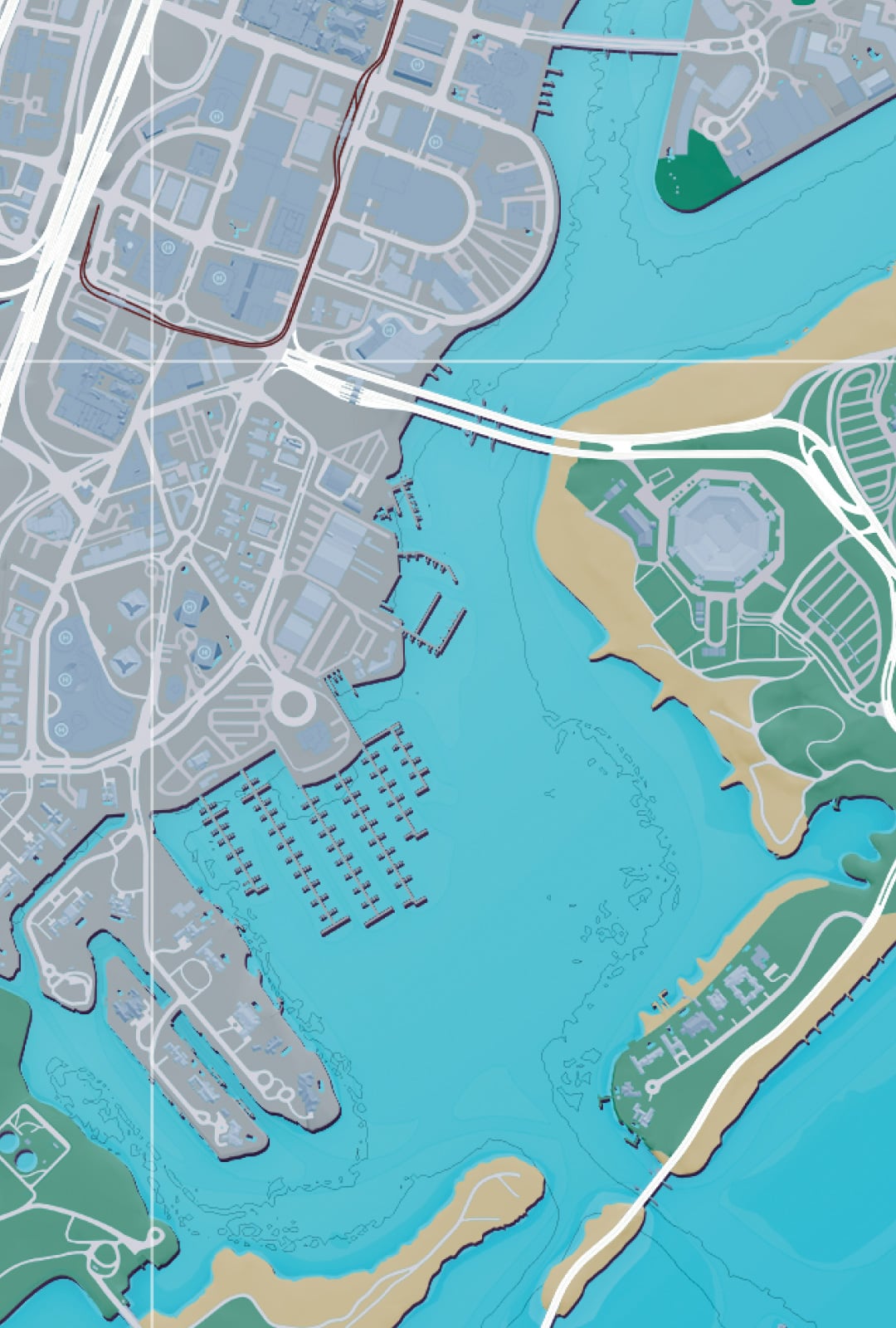
The Map shows your discoveries, activities, shops and current missions. Open the left-hand Index to find the pink Story diary, where available objectives sit. The Brief tab stores recent dialogue, help text and mission instructions, which makes it useful when you missed a direction during a conversation.
The Progress area deals with stats and past story information. The character screen contains details about Jason and Lucia. The main menu also offers Game for saving and loading when available, alongside Settings and other options. The exact context matters; don’t expect every Game option during an active cinematic or restricted sequence.
Can you pause cutscenes without skipping them?
Yes. Launch-day console guidance confirms the same Options or Menu button can pause a cutscene. That matters when somebody interrupts a story moment you don’t want to miss. Once you’re ready, close the pause screen and watch the scene continue. Pausing doesn’t skip it.
If you’ve already missed some spoken instructions, the Brief tab can help with recent dialogue and objective text. It isn’t a full replacement for watching the cinematic, though. A separate manual save made before a big story sequence gives you a better fallback than assuming you can replay every completed mission afterward.
GTA 6 How to Pause During a Mission
During an active mission, the pause screen may also offer Retry Checkpoint or Restart Mission. Those controls are different from pausing. The first returns you to a checkpoint and the second begins the current mission again; neither is a replay menu for old completed jobs.
The answer for GTA 6 How to Pause applies to the console single-player game. Don’t assume a future online mode freezes everybody else’s game in the same way. Server activity and other players are not controlled by your local pause button.
If the button doesn’t respond, check the active controller and its layout under Settings → Control Scheme. Otherwise, you’re free to look at the map, read a missed objective and return to the same moment.
Official game information: Rockstar Games Support: How to Change Grand Theft Auto VI Settings.