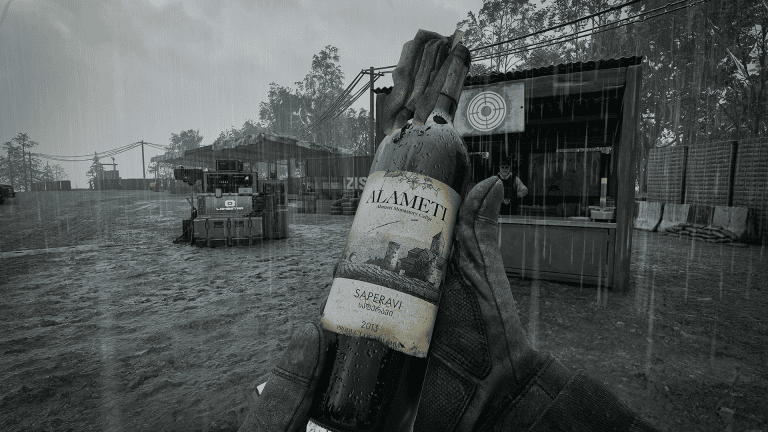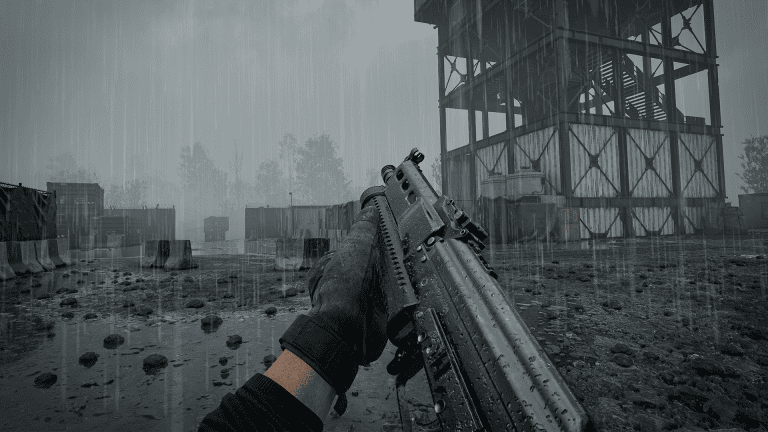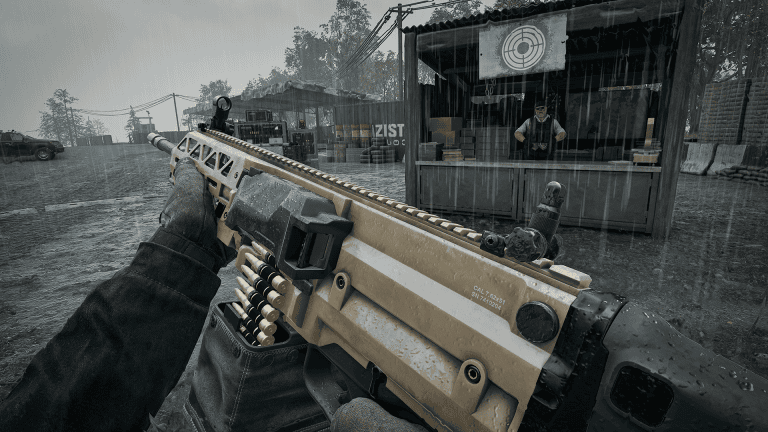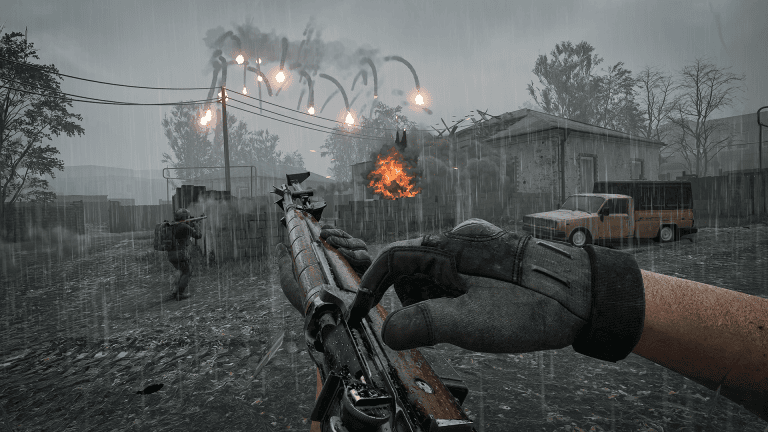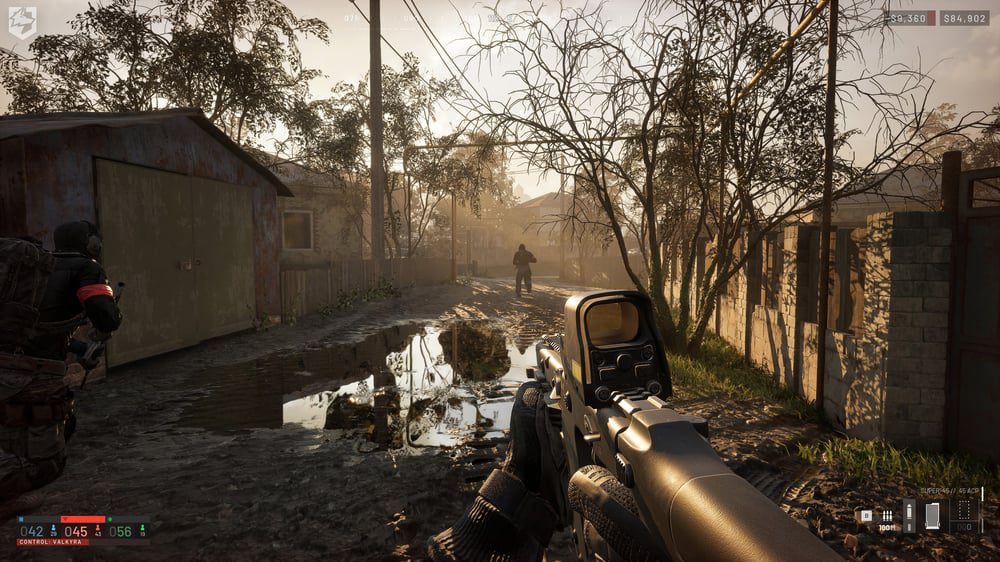
WARDOGS best PC settings should start from a stable frame rate and clear long-distance visibility, not from blindly setting every option to Low. WARDOGS is a 100-player Unreal Engine 5 shooter with destruction, vehicles and long sightlines, so the best setup depends on whether your PC is limited by the GPU, CPU or available VRAM. The goal is consistent frame times while keeping distant players and movement readable.
A strong starting point for WARDOGS best PC settings
For most systems, WARDOGS best PC settings means using your monitor’s native resolution, disabling V-Sync unless tearing is a problem, enabling NVIDIA Reflex when supported, and using DLSS or FSR when native rendering cannot hold the frame rate you want. Frame Generation can raise the displayed FPS, but it does not remove input latency, so competitive players should compare it on and off rather than assuming the larger counter is automatically better.
| Setting | Starting point | Why |
|---|---|---|
| Resolution | Native | Keeps the image sharp enough to read distant targets |
| V-Sync | Off | Avoids extra latency unless tearing is distracting |
| Upscaling | Quality or Balanced | Recovers GPU headroom without immediately destroying clarity |
| Global Illumination | Off or Low | One of the heavier lighting costs |
| Shadows | Low | Saves frames while preserving some visual information |
| Motion Blur / DoF | Off | Reduces visual noise during movement |
The official system requirements are a useful reality check for WARDOGS best PC settings. BULKHEAD lists a GTX 1660 or RX 590 with an i5-8600 or Ryzen 5 3500 and 16 GB RAM for 1080p Low at 60 FPS using upscaling. The recommended tier is an RTX 3070 or RX 6700 XT with an i7-12700K or Ryzen 7 5700X and 16 GB RAM, targeting 1440p Medium at 70+ FPS native or 4K Medium at 60+ FPS upscaled.
Protect visibility before chasing the highest FPS number
A sensible WARDOGS best PC settings profile lowers expensive lighting and post-processing before destroying the settings that help you read the battlefield. Global Illumination, reflections, heavy shadows and post-processing are good first candidates. View distance and mesh detail are more situational because dropping them too aggressively can make long-range fights harder to read.
When tuning WARDOGS best PC settings, test in a live 100-player match as well as the firing range. A quiet range cannot reproduce explosions, building destruction, smoke, vehicles and dozens of players moving at once. Watch the low points and frame-time consistency rather than the best FPS you see while staring at an empty wall.
Season 1 already changed performance behavior
The launch build matters when discussing WARDOGS best PC settings. The Season 1 notes reduced shadow-cache refreshes to cut hitching, fixed multiple Frame Generation crash paths, made the render-target pool configurable and allowed DLSS Frame Generation to be toggled without restarting. That is a reminder to retest settings after major patches instead of copying an August beta preset forever.
Change one setting at a time
The fastest way to find your own WARDOGS best PC settings is to establish a repeatable scene and change one variable at a time. Start with resolution and upscaling, then lighting, shadows, effects and post-processing. If FPS barely changes after lowering a graphics option, you may be CPU-limited in large battles; reducing more GPU settings will not necessarily solve that bottleneck.
Finally, treat WARDOGS best PC settings as a balance between visibility, response and stability. A locked 90 FPS that feels consistent is often more useful than bouncing between 140 and 65. Keep enough image quality to identify players at range, remove effects that obscure movement, and revisit the profile whenever WARDOGS receives a significant performance patch.
Keep the benchmark context realistic
The published targets also explain why copying somebody else’s WARDOGS best PC settings can be misleading. A player on an RTX 4070 at 1080p may be CPU-limited in a crowded fight while someone on an RTX 3070 at 4K is heavily GPU-limited. Record your resolution, upscaler and the scene you are testing before comparing numbers. If a setting change helps in the firing range but collapses again when the Control Zone fills with smoke, vehicles and destruction, the live-match result is the one that matters.
It is also worth capping the frame rate near a level your PC can actually sustain. A sensible cap can reduce heat, fan noise and extreme frame-time swings without making the game feel slower. That is especially useful on laptops or systems that boost aggressively for a minute and then throttle once temperatures rise.
For official game information, updates and Early Access details, visit the WARDOGS website.