
If Fortnite keeps crashing, first work out whether the crash began after a game update, driver update or system change. On PC, damaged files, graphics drivers, configuration files, overlays and unstable hardware can all be involved. On console, restart state, game updates, storage problems and system software are more common places to start.
Quick fixes when Fortnite keeps crashing
When Fortnite keeps crashing, check Epic server status and Fortnite known issues before changing your system. A service problem does not usually cause a traditional desktop crash, but update-day incidents can create confusing launch failures. Then fully restart the device and make sure both Fortnite and the operating system are current.
- Restart the PC or console completely.
- Install the latest Fortnite update.
- Install current console system software or Windows updates.
- On PC, update the GPU driver.
- Close overlays and unnecessary background applications.
- Check that the system has enough free storage.
PC: verify Fortnite game files
If Fortnite keeps crashing on PC, verification is one of Epic’s standard repair steps. In Epic Games Launcher open Library, select the three dots beside Fortnite, choose Manage and select Verify. The launcher checks installed files and replaces damaged or incorrect ones without deleting your Fortnite account progress.
Reset a broken PC configuration
Epic has documented cases where Fortnite keeps crashing after a PC update can be fixed by removing the local GameUserSettings configuration so Fortnite rebuilds it. This resets local settings, so note anything important first. Do not start deleting random folders; use Epic’s specific support instructions when a configuration reset is appropriate.
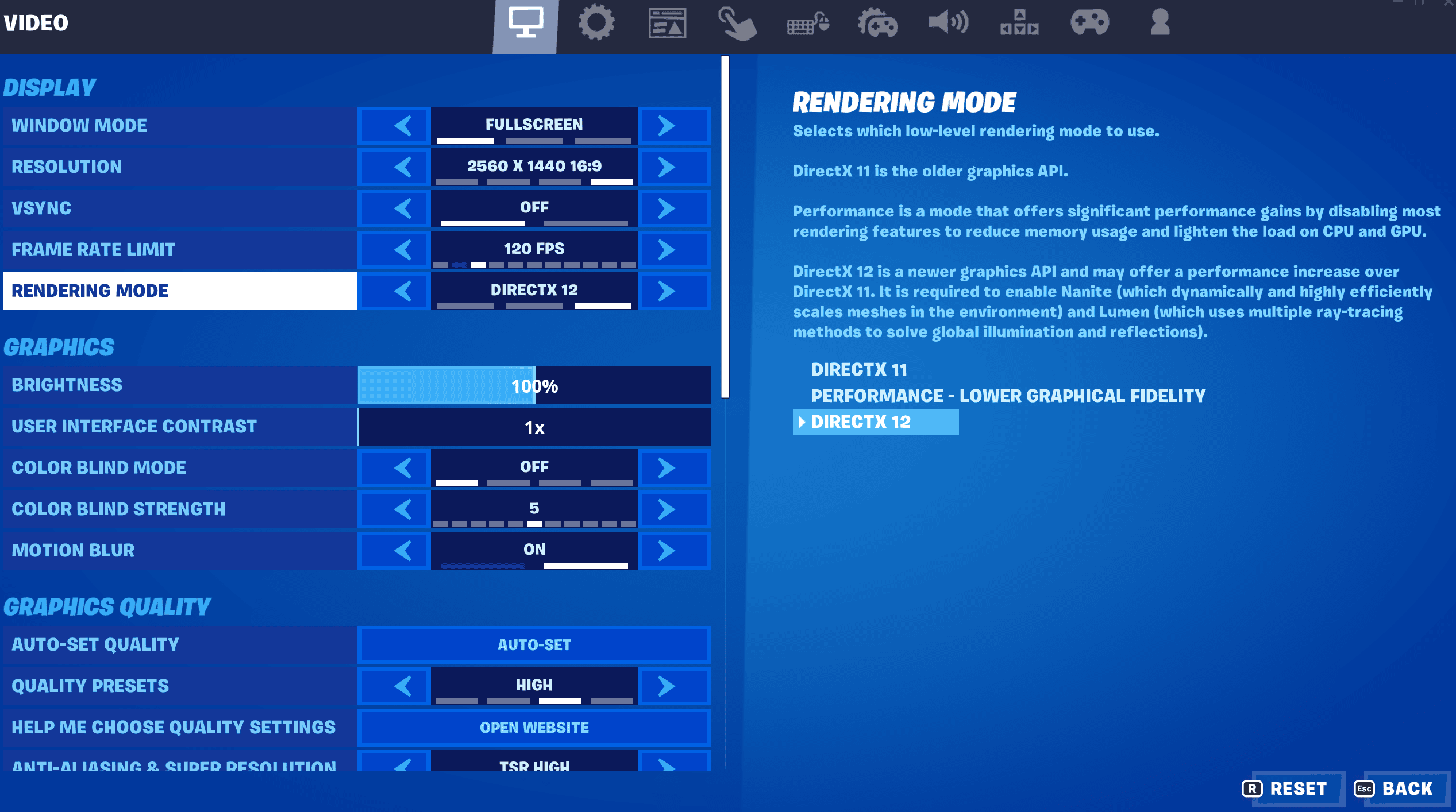
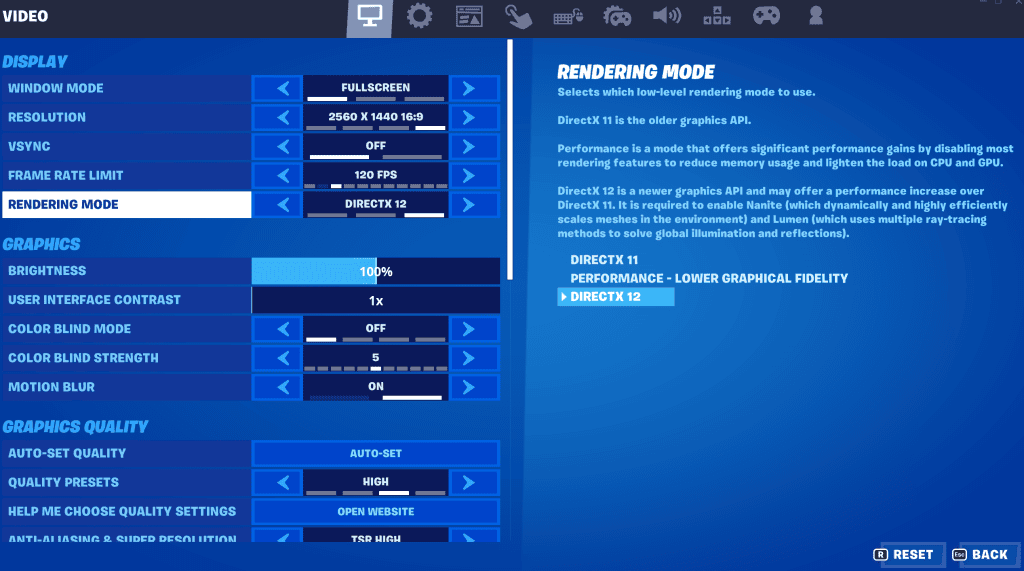
Graphics problems can also cause freezes or black screens. Epic recommends checking system requirements, updating graphics drivers and testing lower graphics settings or Performance rendering where suitable. Overheating and an incorrect GPU selection on laptops are other PC-specific causes worth checking.
Console crash troubleshooting
If Fortnite keeps crashing on PlayStation, Xbox or Nintendo hardware, power the console fully off and restart rather than relying only on suspend. Check storage space, install system updates and reinstall Fortnite only after ordinary restart/update steps fail. If other demanding games also crash, the problem may be broader than Fortnite.
Do not ignore hardware instability
When Fortnite keeps crashing during heavy fights but the game is fine in menus, watch temperatures and system stability on PC. GPU overclocks, unstable memory, failing storage or thermal throttling can surface in demanding games. Returning overclocks to stock and checking hardware health is more sensible than reinstalling Fortnite repeatedly.
Fortnite keeps crashing FAQ
If Fortnite keeps crashing immediately after one specific Fortnite patch, check Epic’s known issues first. If only your PC crashes, verify files and drivers. If the crash follows a Windows or GPU-driver update, focus on that change. If every game on the machine crashes, Fortnite is probably not the root cause.
The best order when Fortnite keeps crashing is restart, updates, file verification, driver/settings checks, then reinstall. That sequence fixes the common causes without turning a ten-minute repair into an hour-long download.
If the game reaches the lobby reliably but crashes only when loading a particular experience, test ordinary Battle Royale or another mode. That helps separate a general Fortnite installation problem from an issue tied to a specific island, asset or playlist.
On PC, the Windows Reliability Monitor and crash timestamps can help show whether the failure lines up with a graphics driver, Fortnite executable or another component. You do not need to become a crash-log expert, but noticing that every failure began immediately after one driver update is far more useful than blindly reinstalling the game several times.
If Fortnite crashes at exactly the same point every launch, note what is happening at that moment: loading Easy Anti-Cheat, entering the lobby, compiling shaders, joining a match or switching rendering mode. A repeatable trigger makes support guidance much easier to target than a vague report that the game simply closes.
If a crash happens only after hours of play, temperature and memory pressure become more relevant than if Fortnite closes immediately at startup.
For official game information and current updates, visit the Fortnite website.





