
Fortnite packet loss happens when some of the data travelling between your device and Fortnite servers never reaches its destination. Even a fast broadband connection can suffer packet loss, causing rubber-banding, delayed builds, inconsistent shots or sudden movement. Fortnite has a built-in network display that lets you confirm the problem during a real match.
How to check Fortnite packet loss
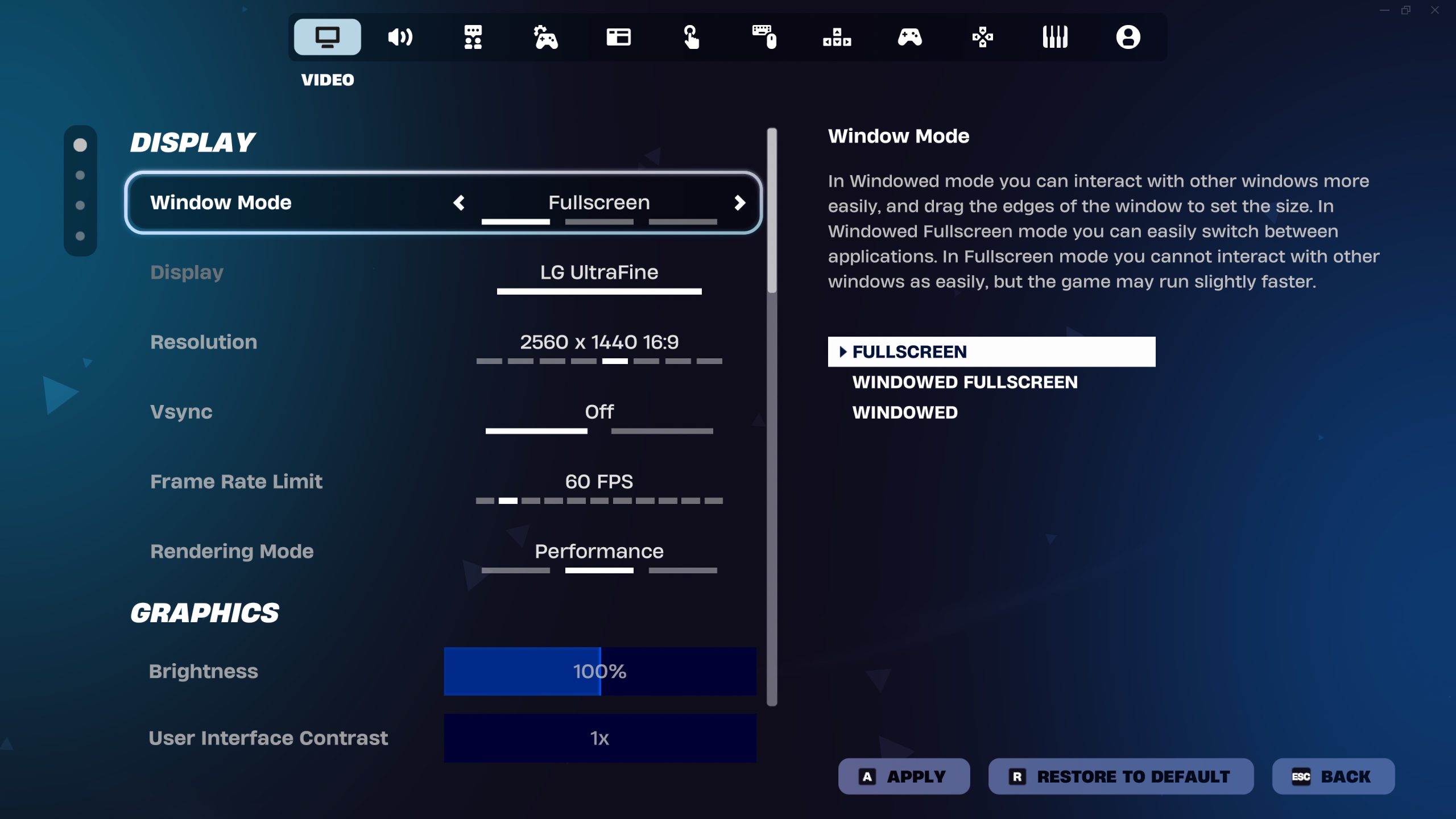
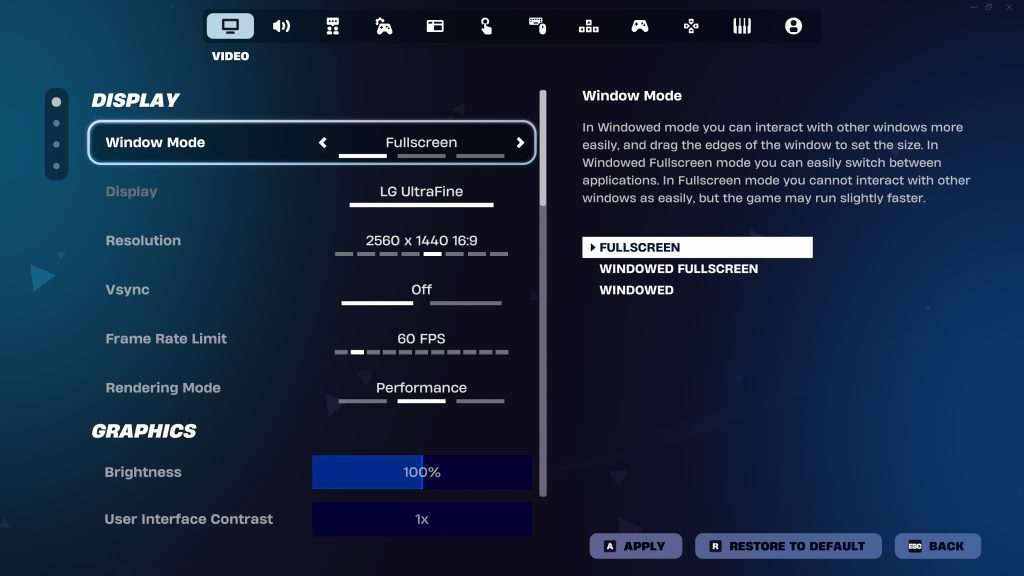
To measure Fortnite packet loss, open Settings from the Fortnite lobby, go to Game UI and turn Net Debug Stats on. Start a match because the useful results appear while you are connected to a game server. Watch the packet-loss values alongside ping rather than relying on a single lag spike.
A stable connection should not repeatedly lose packets. Very occasional tiny blips can happen on any internet connection, but persistent loss or large spikes are worth troubleshooting, especially when they line up with freezing or rubber-banding.
Fix packet loss on your home network
If Fortnite packet loss appears on Wi-Fi, test Ethernet first. That single comparison can tell you whether the wireless link is the weak point. Move closer to the router, avoid heavily congested Wi-Fi channels, restart network equipment and pause devices that are saturating the connection.
- Use a wired Ethernet connection for testing.
- Restart the modem/router.
- Pause downloads, uploads and cloud backups.
- Disconnect or pause bandwidth-heavy devices.
- Test at a different time of day to spot congestion.
- Compare another game or device on the same network.
Epic’s PC packet-loss troubleshooting
Epic’s current support guidance for Fortnite packet loss includes enabling Net Debug Stats and, on PC, testing the -limitclientticks additional command-line argument through Epic Games Launcher. Epic describes this as limiting network updates. Treat it as a targeted troubleshooting step rather than a universal performance tweak, and remove it again if it does not improve your connection.
Packet loss versus high ping
Fortnite packet loss and high ping can happen together, but they are not the same. Ping measures delay; packet loss means data has disappeared in transit. You can have a 20 ms ping with loss that makes the game feel awful, or a stable 100 ms connection with no loss that feels delayed but predictable. This is why the network debug display matters.
When to contact your ISP
If Fortnite packet loss continues on Ethernet, across multiple devices and outside Fortnite, the ISP or line may be involved. Save screenshots or note the loss percentage and time of day. If only Fortnite is affected, also check Epic server status and compare matchmaking regions before assuming your home line is faulty.
Fortnite packet loss FAQ
Persistent Fortnite packet loss should not be “fixed” by lowering graphics quality because graphics do not repair missing network packets. Likewise, a higher-speed package does not automatically remove loss if the issue is Wi-Fi interference, line quality or routing. Diagnose the path in order: Fortnite stats, local network, router, ISP and then regional game services.
If Fortnite packet loss starts immediately after a major Fortnite update, check for wider service reports before changing a working router configuration. If it happens every evening regardless of updates, congestion becomes a more likely explanation.
If loss shows only on the upload side, look closely at devices sending data from your home, such as cloud-photo backups, livestreaming or large uploads. Upload saturation can wreck game responsiveness even when a download-speed test still looks impressive.
Packet loss can also come from the path beyond your house, so a perfect Ethernet cable does not prove the entire route is healthy. Compare results at different times and, if possible, another internet connection. If one ISP path repeatedly loses packets while a hotspot or second connection does not, keep those measurements for your provider instead of endlessly changing Fortnite settings.
If you use powerline networking, mesh Wi-Fi or an extender, test a direct connection to the main router as well. Extra network hops inside the home can introduce instability that disappears when the device is connected more directly.
Keep the network overlay on for several matches so you can see whether the loss is persistent or tied to one short connection spike.
For official game information and current updates, visit the Fortnite website.
More Fortnite from The Click
Fortnite best settings for FPS, lag and aim





