
Here’s how to automatically sell items in Storage Hunter Simulator while you’re out buying more stock. Once you own a pawnshop, the Automatic Listing by Employee option on its management laptop lets the worker put your goods on display without you selecting each item yourself.
Your shop still needs customers to buy those items, so the money won’t arrive the moment you deliver them to the warehouse. Automatic listing is particularly useful if you’d rather spend your day bidding at auctions than returning to the shop whenever a shelf becomes empty.
How to Automatically Sell Items in Storage Hunter Simulator
Once you’ve bought a pawnshop, approach the laptop on the counter and interact with it using E on PC. Enable Automatic Listing by Employee on the first management page, then bring the items you want to sell to the shop.
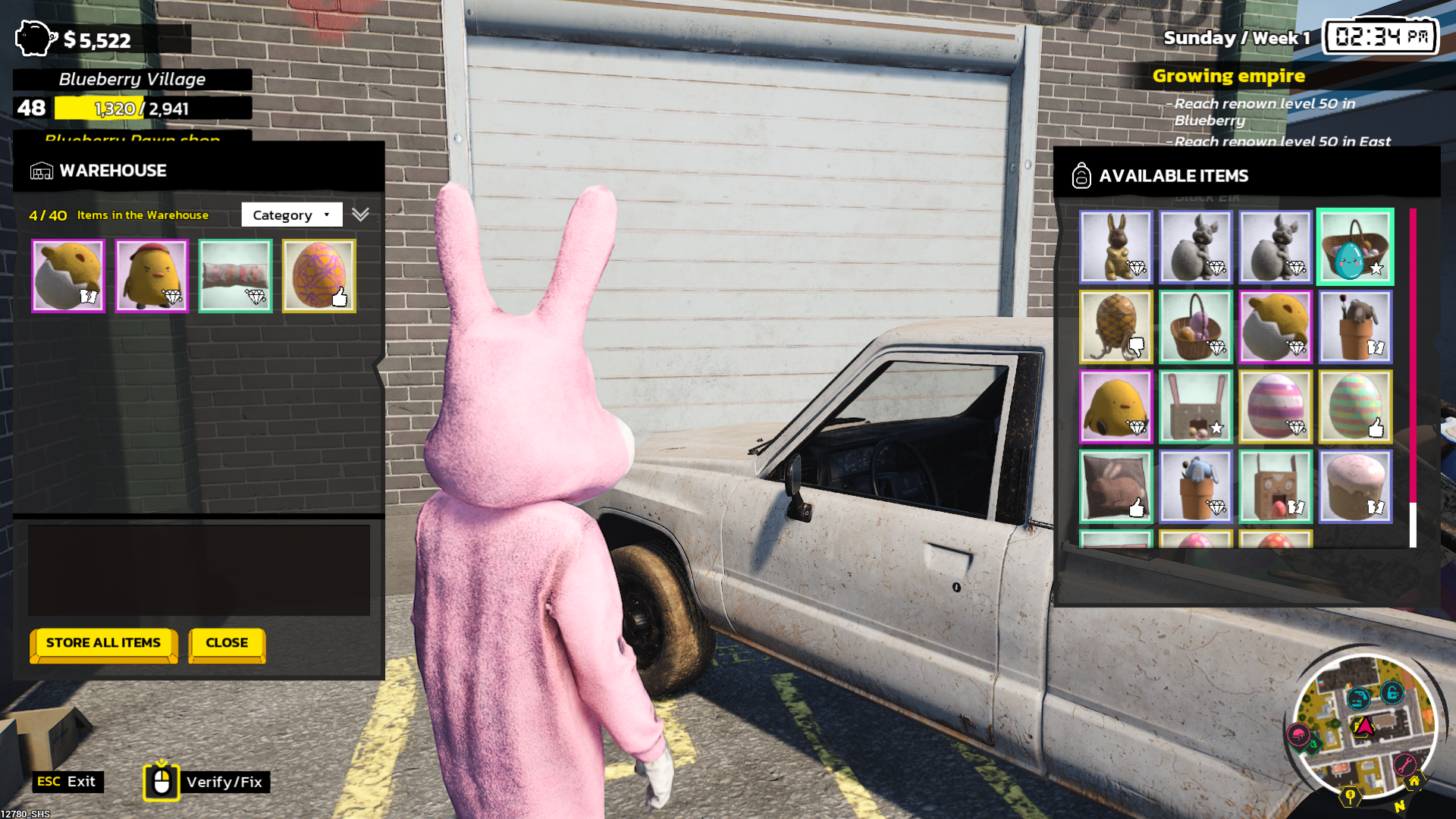
At the first Blueberry pawnshop on PC, the warehouse unloading area is marked in yellow beside the building. Park your vehicle there and transfer the goods into the business’s inventory, checking that the stock has actually reached the shop before heading off to another auction.
Preparing Items for Automatic Listing
Prepare your finds with the verification and fixing tools before delivering them. If the verifier can’t identify a particular rarity, arrange specialist work or save the item for a later equipment upgrade, rather than expecting the employee to process it.
If you’ve bought a locked chest, keep it separate until you’ve opened it and inspected the contents. The same applies to collectibles you want to keep for a set, since those aren’t items you want your worker to put up for sale.
How to Automatically Sell Items in Storage Hunter Simulator When Shelves Are Full
When learning how to automatically sell items in Storage Hunter Simulator, keep an eye on both the warehouse and the shelves. If the warehouse contains plenty of prepared goods but every display space is occupied, adding more storage won’t resolve that particular bottleneck; a shelf upgrade may be more useful.
More expensive finds can spend longer on the shelf before selling, so a delay doesn’t necessarily mean automatic listing has stopped working. Check your takings when you return to the shop, and if you urgently need cash for another bid, consider selling some verified items directly to another pawnshop instead.
Instant Selling vs Employee Listing
Automatic Listing by Employee is separate from instant selling, which lets you dispose of applicable items without placing them on your shop’s shelves. If you want to work towards the Cleaner achievement on Steam, instant-selling junk is the relevant mechanic rather than automatic listing.
Once the stock is in the warehouse and automatic listing is enabled, you can get on with the next auction. Return when you’re delivering another load, collect any sale proceeds and check whether the shop has enough space for the goods you’ve just bought.
How to Automatically Sell Items in Storage Hunter Simulator From Stored Stock
On PC, you can also verify and repair goods directly through the warehouse interface. This makes it easier to prepare stored goods for sale without moving each one outside first, although you still need the appropriate tool level for the item’s rarity and condition.
Related Guides
- How to Sell Items in Storage Hunter Simulator
- How to Buy a Pawnshop in Storage Hunter Simulator
- How to Make Money Fast in Storage Hunter Simulator
- How to Appraise Items in Storage Hunter Simulator
- How to Upgrade Your Pawnshop in Storage Hunter Simulator
- How to Repair Items in Storage Hunter Simulator
- How to Upgrade Your Verification Tool in Storage Hunter Simulator
- How to Open Locked Chests in Storage Hunter Simulator