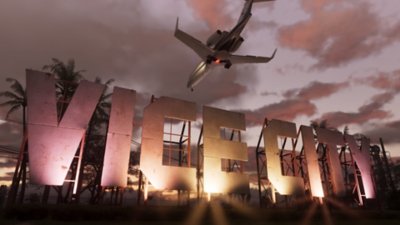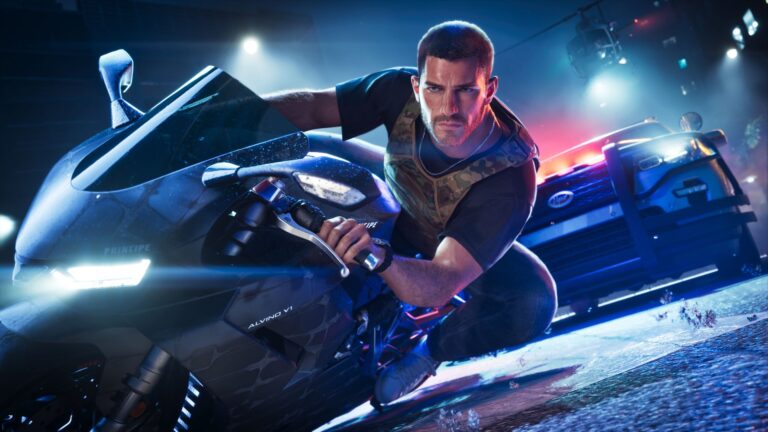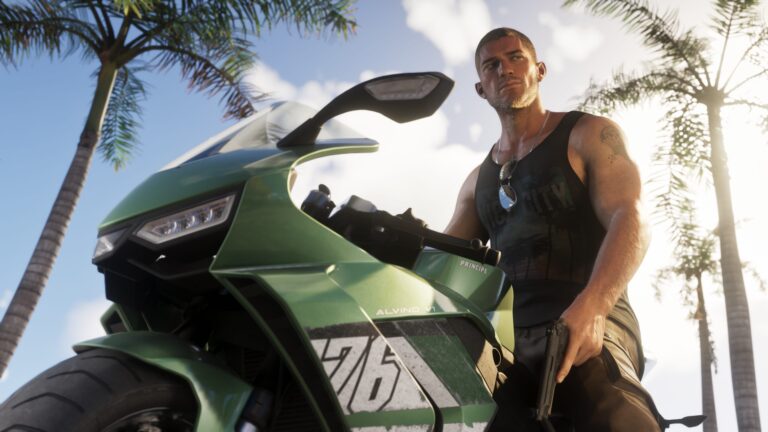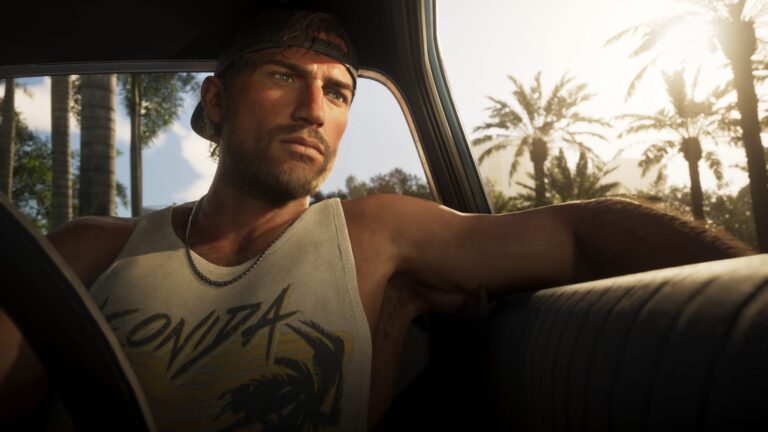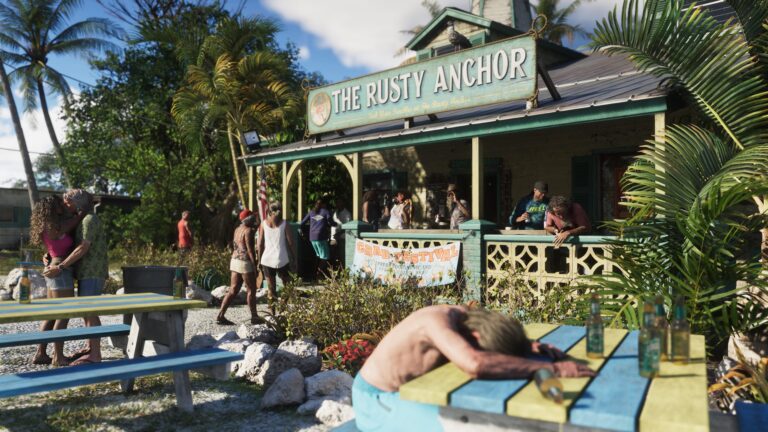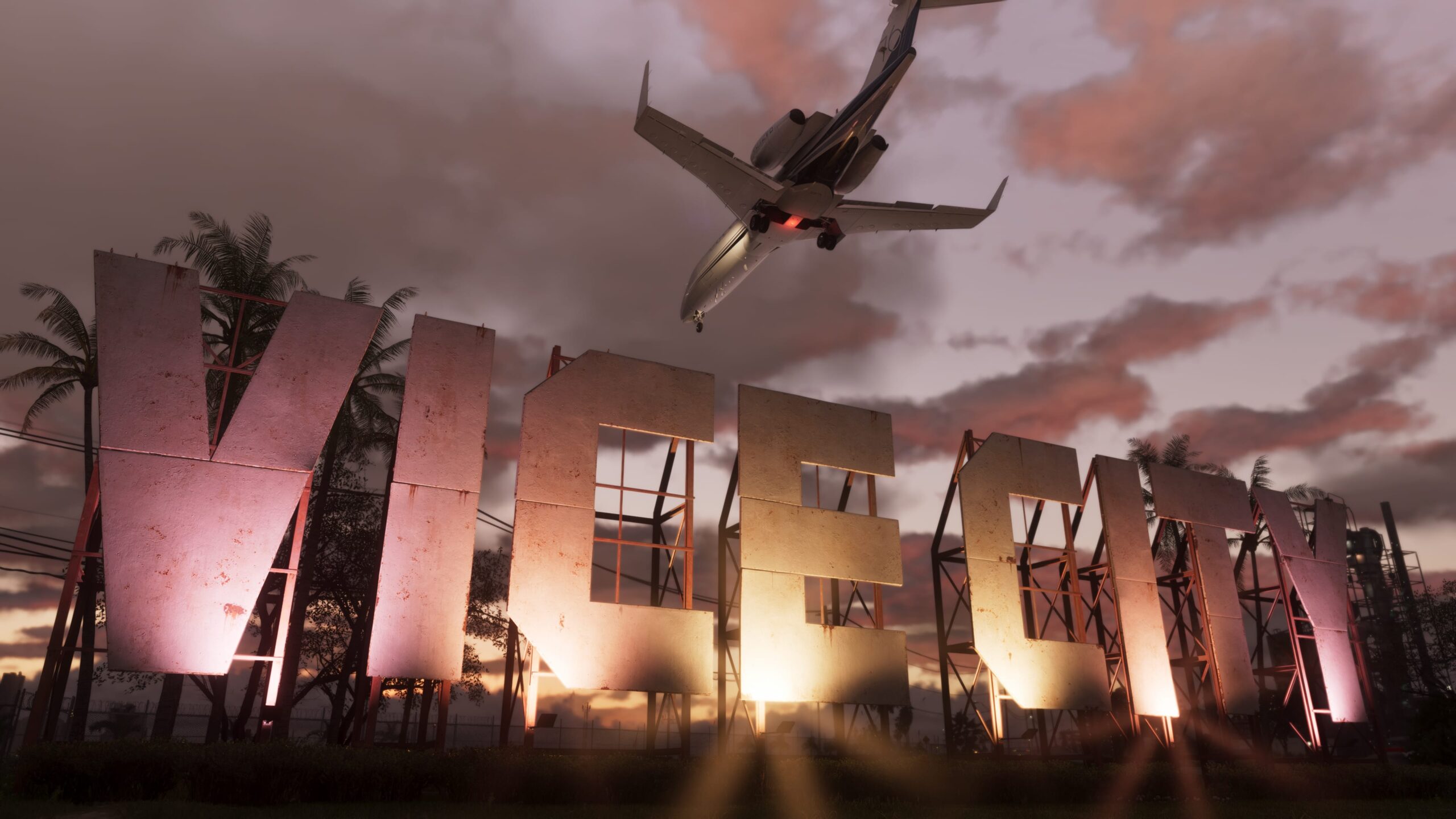
GTA 6 Brightness Settings can make a big difference if Vice City looks washed out during the day or so dark at night that you can’t make out the road. You can revisit the game’s display calibration after the first launch, so you don’t have to live with the picture you picked on the opening setup screen.
The ideal GTA 6 Brightness Settings depend on your TV or monitor. A value that looks great on one HDR screen can hide shadows or wash out highlights on another. Your own calibration screen matters more than anyone else’s slider numbers.
Where to Find GTA 6 Brightness Settings
- Pause the game and select Settings.
- Open the Display tab.
- Check that HDR is enabled if your display supports it and you want to use HDR.
- Choose HDR Calibration, or the brightness calibration screen shown for your current output mode.
- Follow the test images until the symbols and highlights match the on-screen directions.
On PS5 with HDR enabled, the calibration shows Max Brightness, Black Levels and Paper White controls across three test images. The first asks you to make the logo barely visible; later scenes help you judge bright and dark details. Use the D-pad to adjust rather than forcing the values to match somebody else’s screenshot.
GTA 6 Brightness Settings for HDR Calibration
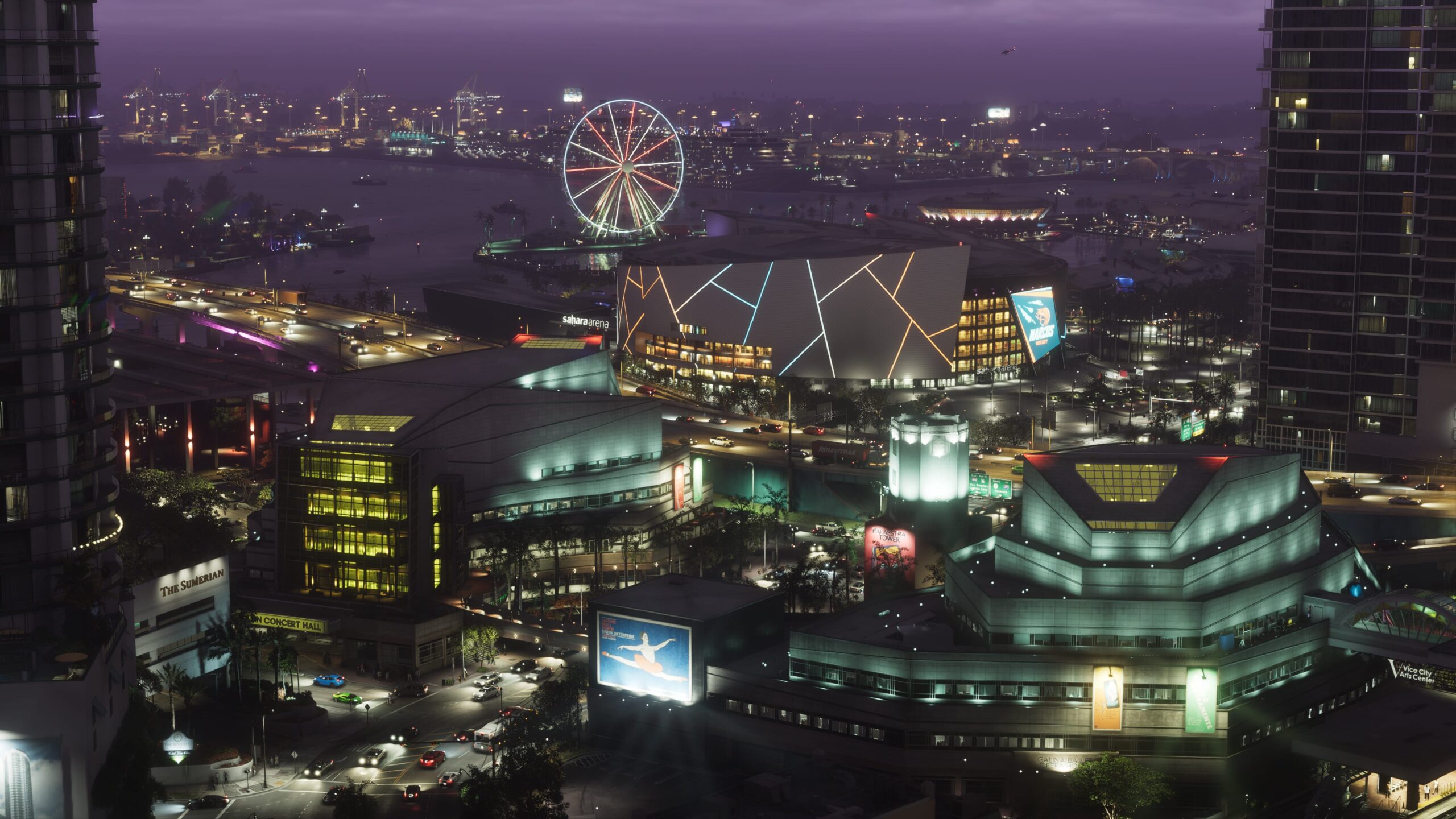
Start with the calibration pattern before checking a real gameplay scene. Max Brightness affects bright highlights, so pushing it too far can turn white clouds and signs into flat patches. Black Levels control how deep the shadows feel; too low can hide detail in alleys, vehicles and dark interiors. Paper White affects the everyday brightness of UI and lighter surfaces.
The PS5 launch calibration starts from Max Brightness 600, Black Levels 50 and Paper White 50, but these are starting values, not universal recommendations. Compare the daytime and nighttime images and choose settings that keep detail in both. If the changes make the picture worse, the calibration screen has a Restore Default option.
GTA 6 Brightness Settings When Nights Look Too Dark
Before increasing every slider, check HDR on your console and television. On a compatible TV, using HGiG tone mapping in Game Mode can help prevent the television from processing HDR highlights a second time. The order for GTA 6 Brightness Settings is television first, PS5 HDR calibration second, and the in-game calibration last. If your TV has no HGiG option, use its appropriate HDR Game Mode and follow the on-screen test images.
If you can see the HUD clearly but the game world is too dark, focus on HDR black levels and your television’s picture mode. If both the image and interface are too dim, review the panel brightness and system output as well. Night scenes should still look like night, so lifting shadows until they match bright daytime screenshots is usually the wrong goal.
GTA 6 Brightness Settings for Washed-Out Colours
Washed-out colours can be the other side of the same problem. Revisit HDR calibration and make sure bright areas retain texture. On some TVs, an over-aggressive tone-mapping or dynamic contrast setting can change the image between scenes, making it difficult to settle on correct in-game values.
GTA 6 also includes a Brightness Reduction option in the Display visual effects section. It’s intended to soften bright in-world effects, which can help if flashes are uncomfortable. It is not a substitute for calibrating the whole picture, and it won’t fix a television that’s using an incorrect HDR range.
Change Motion Blur and Other Visual Effects
The Display tab has Motion Blur Strength, along with controls for hit, awareness and player-status effects. Lowering Motion Blur Strength can make quick camera movement clearer, particularly if road signs smear as you turn. This won’t raise the frame rate, but it can improve how sharp the picture feels.
There is also a screen Safe Zone setting if HUD elements sit too close to the TV’s edges. That affects framing, not brightness. Keep it separate from picture calibration so you can distinguish a visibility problem from an overscan problem.
GTA 6 Brightness Settings Without HDR
Check whether your television or monitor actually supports HDR, whether the console is outputting an HDR signal and whether the game has detected it. The exact calibration rows can depend on the display mode in use. There’s no benefit in turning on HDR if the connected screen cannot show it correctly.
If you’re unhappy with the result, use Restore Default for the affected option and run through the test images again. GTA 6 looks best when you can read dark environments without erasing the difference between nighttime Vice City and a bright Leonida afternoon.
Official source: Rockstar Games Support, How to Change Grand Theft Auto VI Settings.