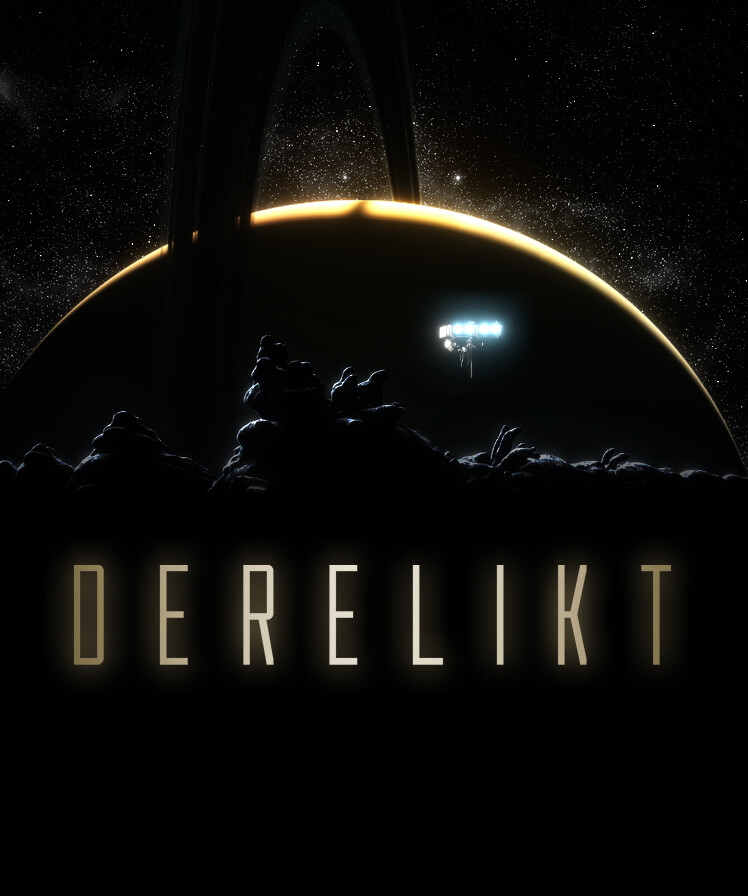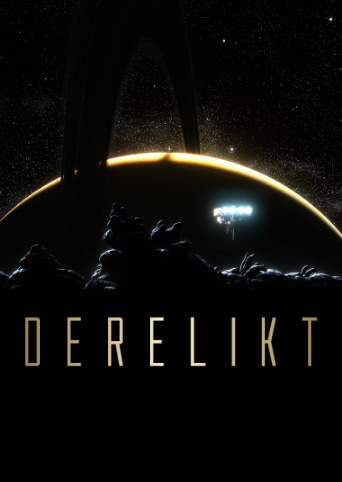
DERELIKT PS1 graphics settings include a cleaner high-resolution mode and separate options to disable texture warping and dithering. If the walls seem to wobble when you move, or the picture looks too grainy, you don’t have to put up with those effects for the whole game.
Visuwyg designed the sci-fi horror shooter to resemble an ambitious original PlayStation game, but creator Philipp Jensen confirmed the visual options in a developer post on 6 November 2026. Here’s what to change for a steadier picture, and why the retro version looks the way it does.
DERELIKT PS1 Graphics Settings: What to Change
If you want the cleanest look, start by choosing high-resolution mode, then turn texture warping and dithering off. Those options are confirmed by the developer, and you can adjust the retro effects without giving up the game’s horror setting or story.
| Setting | What it does |
|---|---|
| Retro low-resolution mode | Uses the deliberately crunchy, period-inspired image. |
| High-resolution mode | Displays a cleaner, higher-resolution picture. |
| Texture warping | Makes textures shift or distort across polygon surfaces as the camera moves. Can be disabled. |
| Dithering | Uses visible pixel patterns to create the retro colour and shading effect. Can be disabled. |
Jensen hasn’t published the exact menu path or controller button sequence for each platform, so the specific screen labels may differ. Look for the game’s graphics or display options and change the visual effects individually. If you like the chunky pixels but not the wobbling walls, leave the retro resolution on and disable just the warping.
How to Turn Off Texture Warping in DERELIKT
Disable texture warping in the visual settings. It’s the effect responsible for textures that appear to bend, stretch or swim as you move past a wall. This is a deliberate imitation of the original PlayStation’s rendering, not evidence by itself that your GPU is failing.
The PS1 often used affine texture mapping. On larger polygons, the image painted onto a surface didn’t stay perfectly aligned with perspective as the camera moved. That produced the familiar swimming effect, especially on walls close to the player.
DERELIKT recreates that behaviour, but the developer didn’t want to exaggerate it. If you grew up with late-1990s games, you might remember enormous amounts of warping; in practice, artists and programmers worked hard to reduce it. The option to switch it off is handy for anyone who finds the movement distracting.
Turning off warping only changes that effect. It doesn’t promise to cure unrelated screen tearing, stutters or every flicker you might see in a game.
What Does Dithering Do?
Dithering creates patterns of pixels that imitate extra shades of colour. It’s a familiar part of how older games handled gradients and shadow on limited hardware. In DERELIKT, it helps give the lighting and environments that late-PlayStation look.
If you notice noisy or patterned shadows and would rather have a smoother image, try disabling it. Dithering and warping are separate options, so you don’t need to sacrifice one effect to keep the other. You can play with low resolution and no dithering, or choose high resolution while leaving some of the retro treatment enabled.
Why the PS1 Effects Look So Convincing
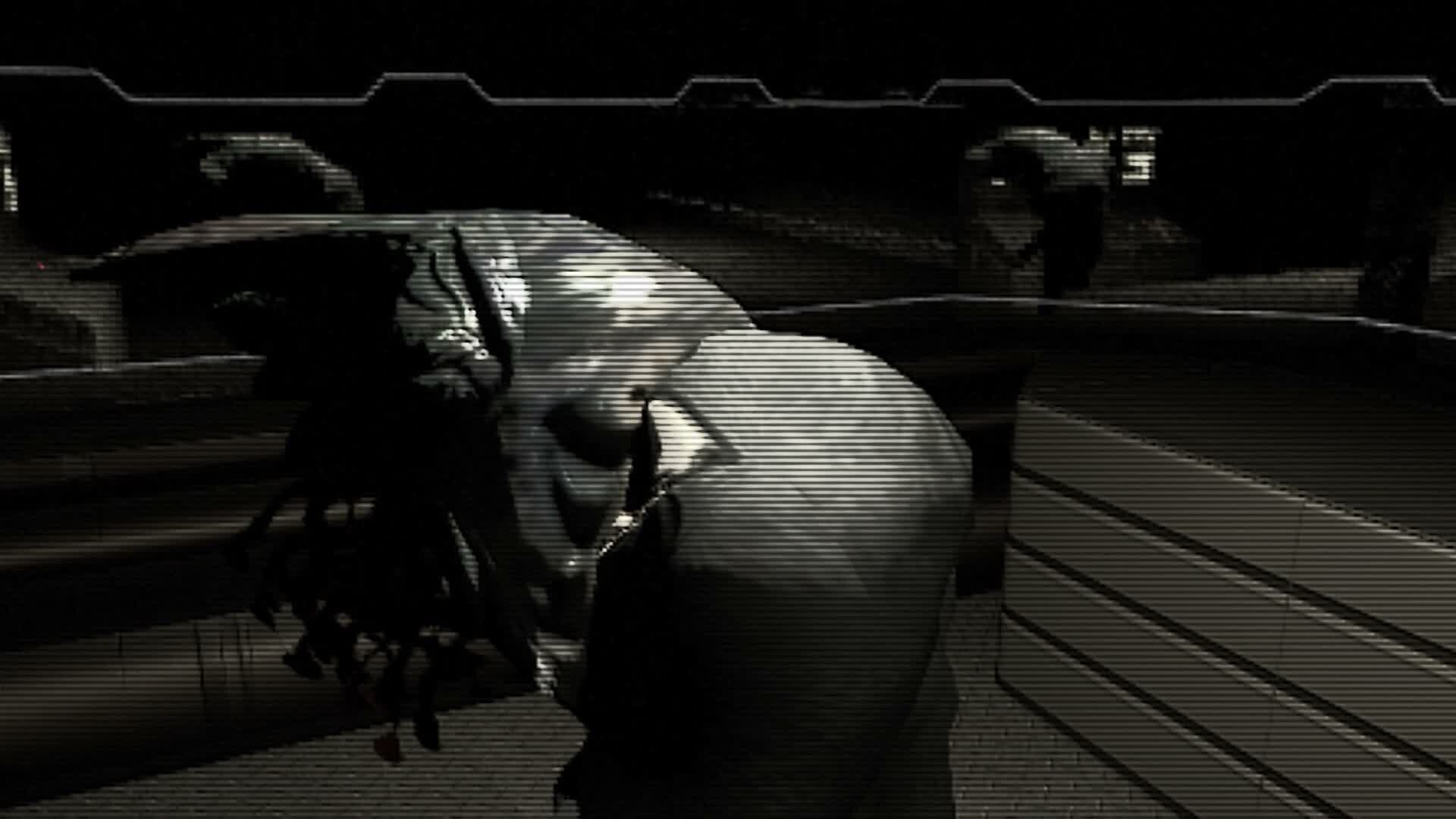
Philipp Jensen spent years studying how developers made the original PlayStation look its best. Instead of just lowering the resolution and making everything blocky, he recreated several techniques that helped demanding games of the time hide the hardware’s limits.
One is dynamic polygon subdivision. Large triangles show texture distortion more clearly, so the game can split a triangle into four smaller ones as the camera gets closer. Those can be divided again into 16, reducing the visible warping while keeping the old-style rendering approach.
That explains why DERELIKT’s geometry can have a subtle, shifting look without every wall becoming a wildly distorted mess. It was a deliberate artistic and technical choice, not an unfinished model.
How the Lighting Was Made
The environments also use hand-painted vertex lighting. Jensen painted light and shadow onto the geometry with Blender’s vertex painting tools, taking inspiration from workflows used by artists in the 1990s.
That produces carefully placed patches of light and darkness even though the game is built around relatively simple-looking shapes. It’s part of what makes the station feel eerie without needing the appearance of a modern photorealistic shooter. The developer also uses hand-painted textures and retro-style CGI cutscenes to complete the look.
Should You Choose High-Res or Retro Mode?
Try the retro mode first if you want the full PS1 atmosphere. If the picture is hard to read or the moving textures are bothering you, switch to high resolution and turn the two optional effects off. It’s perfectly reasonable to prefer one part of the style and not another.
These settings control appearance, not a verified performance preset. A high-resolution image doesn’t automatically mean more FPS, and switching warping off isn’t guaranteed to solve a separate graphics problem. Actual performance will depend on the game and your hardware.
The useful thing about the DERELIKT PS1 graphics settings is that the retro look isn’t all-or-nothing. You can keep the game’s atmosphere while making the image much easier on your eyes.
Related DERELIKT PS1 Graphics Settings Guides
Official developer source: Visuwyg’s explanation of the look of DERELIKT.