
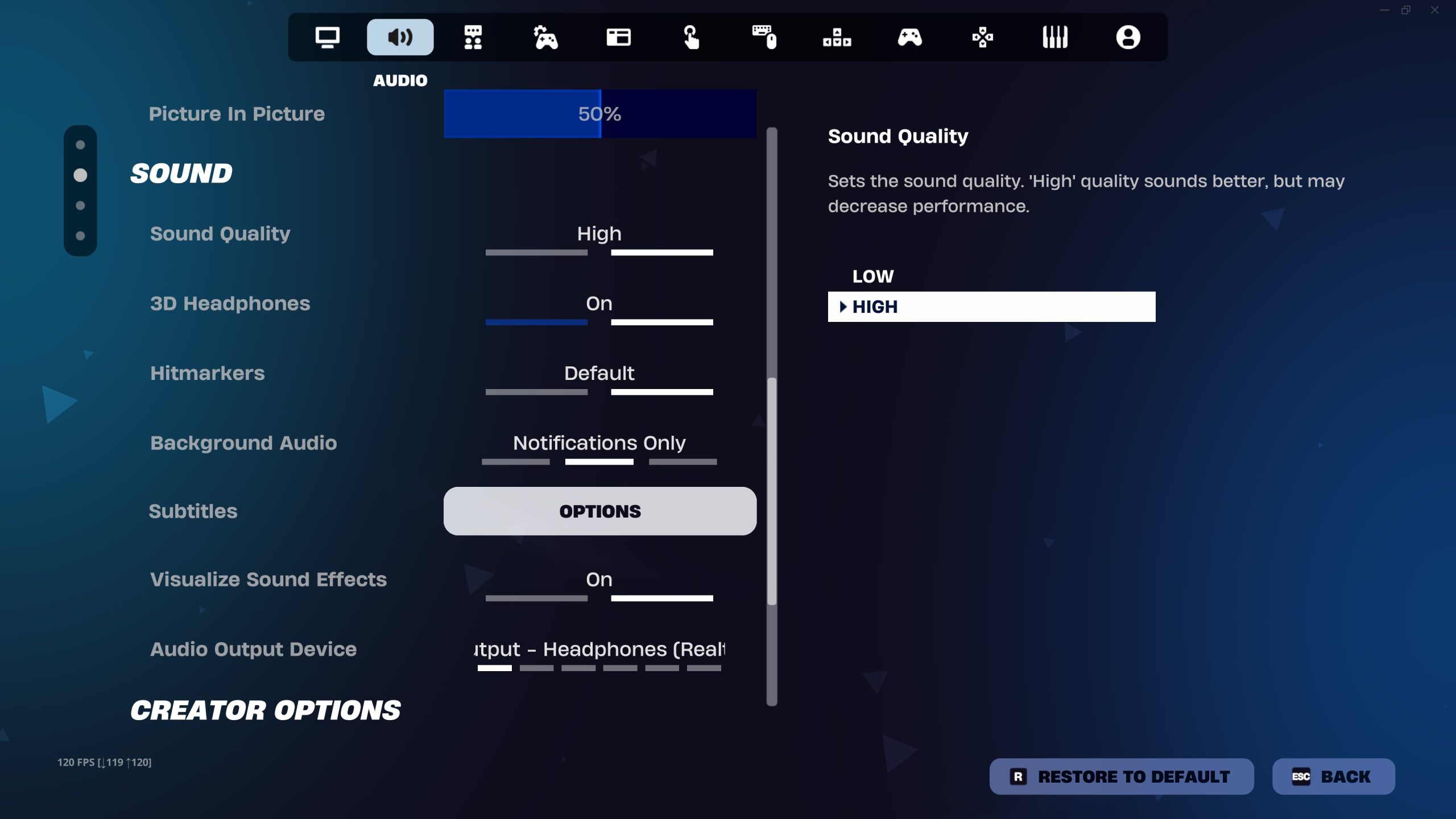
To turn on Visual Sound Effects in Fortnite, open Settings from the lobby, choose the Audio tab, switch Visualize Sound Effects to On, then select Apply. Fortnite will display a radial indicator around your character for supported nearby sounds, including footsteps, gunfire, vehicles, chests and other useful audio cues.
How to turn on Visual Sound Effects in Fortnite
The menu path to turn on Visual Sound Effects in Fortnite is short, but the option sits in the Audio page rather than the Game UI page. Epic currently lists the setting under Audio alongside sound quality, 3D Headphones, subtitles and other listening options.
- Launch Fortnite and stay in the lobby.
- Open your player menu and select Settings.
- Choose the Audio tab.
- Find Visualize Sound Effects.
- Set it to On.
- Select Apply before leaving Settings.
Once you turn on Visual Sound Effects in Fortnite, the circular indicator appears during gameplay whenever Fortnite has a supported directional sound to show. The icon appears on the side of the ring that matches the source, helping you tell whether footsteps, a chest or a fight is ahead, behind or off to one side.
What Visual Sound Effects actually show
Players usually turn on Visual Sound Effects in Fortnite because the setting converts important nearby audio into readable icons. It does not turn every sound in the game into a marker, but the cues that do appear can make busy fights easier to read when several sounds overlap.
| Cue | What it can help you notice |
|---|---|
| Footsteps | Nearby player movement and direction |
| Gunfire | Where a fight is taking place |
| Vehicle | Approaching cars or other moving vehicles |
| Chest | Nearby loot chest direction |
| Glider | Players descending or rotating nearby |
The exact icons can vary with the current Fortnite content, so the important part of turn on Visual Sound Effects in Fortnite is learning the shapes you see most often. Footsteps are usually the cue players rely on most because they can reveal movement before an opponent enters your direct view.
Should you use Visual Sound Effects with headphones?
Yes. You do not need to mute Fortnite after you turn on Visual Sound Effects in Fortnite. The visual system can complement normal game audio, and Epic also recommends 3D Headphones as an option for positional sound when you are using headphones. Keeping both can give you visual confirmation without throwing away the detail of actual audio.
For competitive play, turn on Visual Sound Effects in Fortnite is especially useful when explosions, abilities and team comms make it difficult to pick out a single footstep. The visual ring gives you another information channel instead of forcing you to rely on volume alone.
Why Visualize Sound Effects may not work
If you turn on Visual Sound Effects in Fortnite but nothing appears, first confirm that you selected Apply and that the setting still shows On after reopening the Audio tab. Epic has also acknowledged cases where visual sound cues can appear glitchy or fail alongside other visual effects.
- Update Fortnite fully before troubleshooting further.
- On PC, update your graphics driver if visual effects are glitching.
- Restart Fortnite after changing the setting if it does not appear immediately.
- Check that the issue is not affecting other HUD effects or hit markers too.
- If the option keeps resetting, check whether other settings are also failing to save.
Is Visual Sound Effects worth using?
For most players, yes. The biggest reason to turn on Visual Sound Effects in Fortnite is not that it replaces awareness, but that it makes nearby activity much easier to interpret at a glance. It can help hearing-impaired players, players using speakers, and anyone who wants another way to track threats.
If you are changing several competitive options at once, turn on Visual Sound Effects in Fortnite first and test it in a normal match. Once you recognise the icons naturally, the radial indicator becomes useful information rather than another thing competing for your attention.
Visual cues are also helpful when you are learning a new headset or moving between speakers and headphones. Instead of wondering whether a quiet noise came from the left channel or the room around you, the radial marker gives you a second reference point while you adjust to the new audio setup.
For current settings, game updates and first-party information, visit the official Fortnite website.





