To scan a PokéStop Pokémon GO, open an eligible PokéStop or Gym, choose the scan or power-up option, then walk slowly around the real-world object while your phone records an AR scan. The feature depends on device support and is separate from ordinary AR catching, so some phones will not show the option at all.
How to scan a PokéStop Pokémon GO step by step
The usual route to scan a PokéStop Pokémon GO is to tap the PokéStop or Gym, open its Photo Disc and choose the available Scan PokéStop or Scan Gym option. On eligible locations this can also appear through the power-up interface. Read the safety prompt before recording your first scan.
- Keep the object centred and visible
- Walk around it steadily rather than waving the phone
- Capture the structure from more than one angle when safe
- Avoid filming faces, number plates or private areas
- Upload immediately or save the scan to upload later
When you scan a PokéStop Pokémon GO, the goal is to map the real object, not create a pretty video. Smooth movement and useful coverage matter more than cinematic framing. Do not walk into traffic, restricted land or unsafe terrain to complete a scan.
Device requirements for PokéStop Scanning
You can only scan a PokéStop Pokémon GO on supported AR-capable devices. Official support currently lists iPhone 6s or newer on iOS 11 or later, while Android devices need Android 7.0 or later plus Google Play Services for AR support. A device can run Pokémon GO normally yet still fail the scanning requirements.
If the button is missing, first check whether the location itself is eligible. Not every PokéStop or Gym supports the same mapping features. Then confirm your device supports AR services and that Pokémon GO has the camera permissions needed to scan a PokéStop Pokémon GO.
Upload now or upload later?
After you scan a PokéStop Pokémon GO, you can usually upload the scan immediately or save it for later. Upload later is useful on a poor mobile connection, but the contribution is not completed until the file has successfully uploaded. Large scan files can also use noticeable mobile data.
If the game is using scans for a location power-up or mapping contribution, saving the file without later uploading it will not provide the intended contribution. Make a habit of checking queued uploads on Wi-Fi if you regularly scan a PokéStop Pokémon GO while travelling.
Does scanning create a new PokéStop?
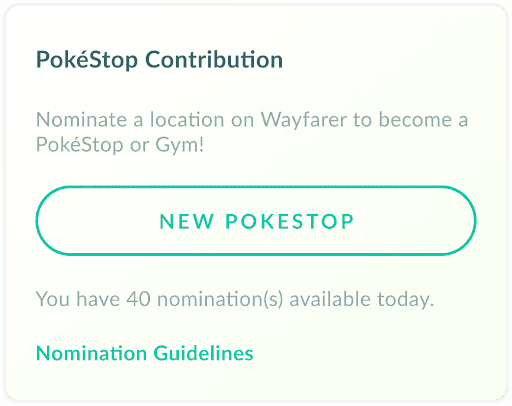
No. To scan a PokéStop Pokémon GO is to contribute AR mapping information about an existing location. It is different from nominating a new Wayspot. New PokéStop nominations use the Uploads and Wayfarer process and are reviewed for eligibility before they can affect the map.
That distinction is useful because the two features are often confused. Use scanning when an existing location asks for an AR contribution; use the nomination system when you have found a new eligible place. You do not need to scan a PokéStop Pokémon GO before submitting a separate new Wayspot nomination.
Scanning can be battery intensive because it uses the camera, motion sensors and location services at the same time. If you plan to contribute several scans, start with a charged phone and avoid recording longer than necessary. A shorter useful scan is better than a long shaky file that captures little of the actual object.
Privacy matters during a scan. Try to frame the Wayspot rather than nearby people, homes or vehicles, and wait a few seconds if a passer-by would dominate the recording. The feature is designed to capture the geometry and surroundings of the object. A clean, steady scan of the actual point of interest is more useful than collecting unnecessary background detail.
If an upload fails, keep the saved scan until you have a stable connection rather than recording the whole object again immediately. Repeated failed uploads can waste battery and data. Once the queued file has uploaded successfully, you can clear it and move on to another eligible location.
For current events, bonuses and official game updates, check the official Pokémon GO website.