
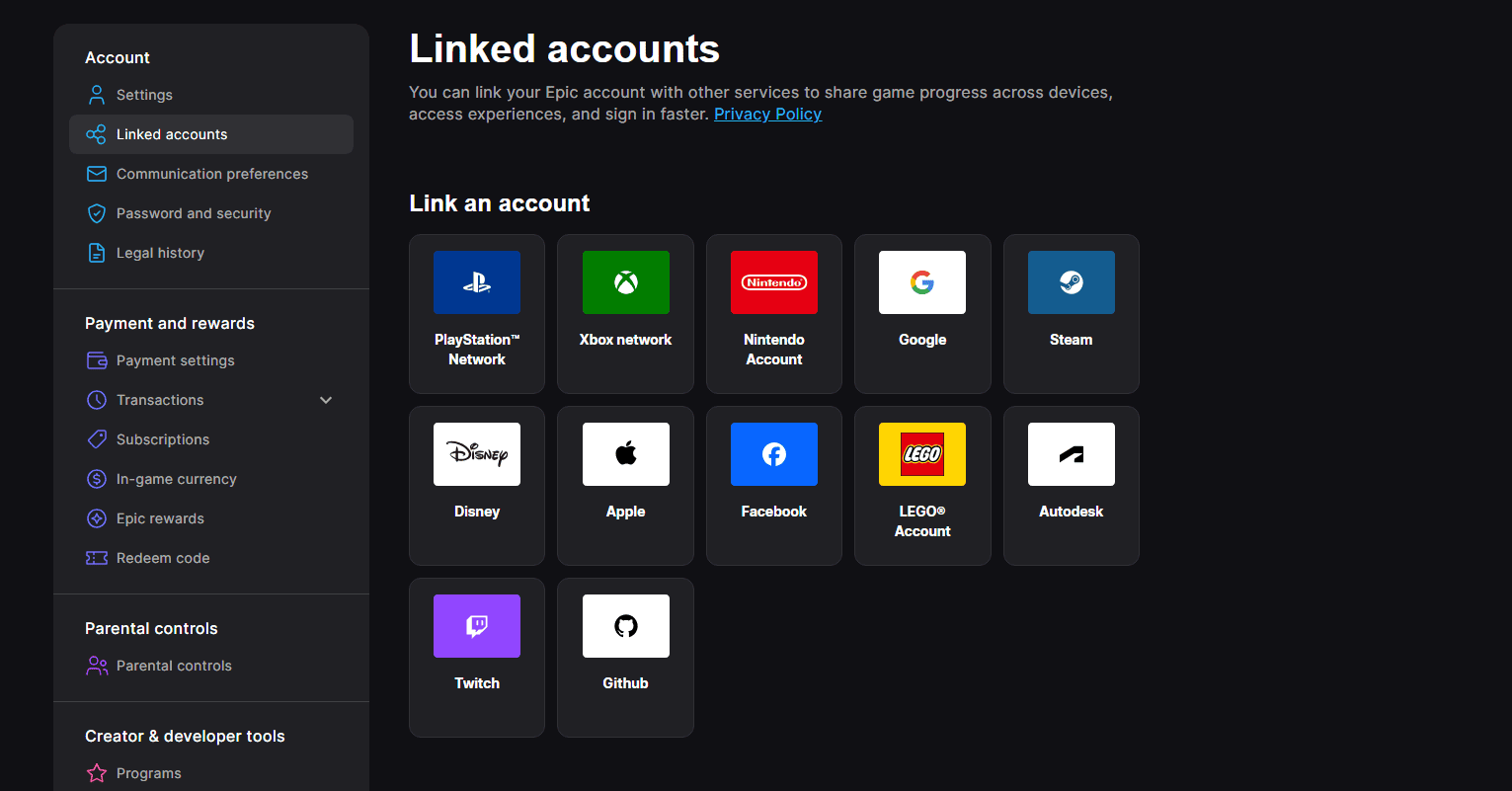
To link an Epic Games account to Fortnite, sign in to Epic Games with the account that holds your Fortnite progress, open Linked accounts and connect the PlayStation, Xbox, Nintendo or other supported platform profile you want to use. The goal is to make every device point to the same Epic account, because that Epic account is where Fortnite progression and purchases are stored.
How to link an Epic Games account to Fortnite
- Sign out of Epic Games in your browser so you do not accidentally use the wrong account.
- Sign in to the Epic account that has your main Fortnite Locker and progress.
- Open the Linked accounts page in Account settings.
- Choose Link under the platform you want to connect.
- Sign in with that platform account and approve the connection.
- Launch Fortnite on the newly linked device and check that your normal Locker and progression appear.
The safest way to link an Epic Games account to Fortnite is to identify the account with your real progress before connecting anything. Linking does not merge two Fortnite histories together. It tells the console or platform which Epic account it should use from that point onward.
What happens when you link an Epic Games account to Fortnite?
When you link an Epic Games account to Fortnite, Fortnite on that platform displays the progression and items stored on the linked Epic account. That means your Battle Pass progress, Locker items and most purchases can be available across the platforms connected to the same Epic account.
There is an important V-Bucks exception. Epic says V-Bucks bundles purchased on Nintendo Switch are not shared with other platforms, and V-Bucks purchased elsewhere are not shared with Nintendo Switch. Cosmetic items bought with those V-Bucks still belong to the Epic account once purchased.
What if you only ever played on console?
You can still link an Epic Games account to Fortnite even if you never remember creating a full Epic account. When Fortnite is first played on a console without completing Epic registration, Epic can create an account with missing details behind the scenes. Sign out on the Epic website, choose the console icon and use your PlayStation, Xbox or Nintendo credentials. If Epic asks you to finish setting up the account, complete those missing details rather than creating a completely separate Fortnite account.
Problems when you link an Epic Games account to Fortnite
The most common problem when trying to link an Epic Games account to Fortnite is seeing a message that the platform account is already linked elsewhere. That normally means the PlayStation, Xbox or Nintendo account is already connected to another Epic account, including an automatically created one.
- Do not unlink accounts at random if you are unsure where your progress lives.
- Sign in through the platform icon to identify the Epic account currently attached to that console profile.
- Check the Linked accounts page before changing anything.
- If you are changing to a different platform account of the same type, Epic may require you to remove a linking restriction.
Can you link more than one console?
Yes. You can link an Epic Games account to Fortnite across different platform types so one Epic account can be used on PlayStation, Xbox, Nintendo and supported PC/mobile devices. The important restriction is that you cannot simply combine several Epic accounts into one by linking their consoles.
If your Xbox progress is on Epic Account A and your PlayStation progress is on Epic Account B, linking both devices to one account does not merge those two histories. You must decide which Epic account contains the Fortnite progress you actually want to keep using.
Check your Locker after you link an Epic Games account to Fortnite
After you link an Epic Games account to Fortnite, launch Fortnite and check a few unmistakable items: your account level, recent Battle Pass progress, favourite skins and any current quests. If everything looks empty, stop before making purchases. An empty Locker usually means the platform is pointing at the wrong Epic account rather than your original data being deleted.
The cleanest way to link an Epic Games account to Fortnite is therefore simple: identify the Epic account with your real Fortnite data first, connect the platform from Linked accounts, and confirm the Locker before you start spending or redeeming codes on the newly linked device.
For current game news, platform availability and official Fortnite information, visit the official Fortnite website.
More Fortnite from The Click
Fortnite guides, events, news and updates





