If you’re wondering how to turn off paid gifts in Pokémon GO, you can stop friends buying you shop items without having to remove them from your Friends List. The expanded paid gifting system includes an account-wide toggle as well as an option to stop individual friends from purchasing items for you.
If you’re happy exchanging postcards but would rather friends didn’t spend money on you, leave ordinary gifting alone and change the paid gift setting.
How to Turn Off Paid Gifts in Pokémon GO
From the map, tap the Poké Ball at the bottom of the screen to open the main menu, then head into Settings using the button in the top-right corner. Scroll down to Friends and switch off Allow Friends to Send You Paid Gifts.
The setting only affects paid gifts, so you can carry on receiving ordinary PokéStop Gifts from your friends. If you change your mind, simply return to the same menu and switch the option back on without having to remove or re-add anybody.
How to Turn Off Paid Gifts in Pokémon GO for One Friend
If you’re looking for how to turn off paid gifts in Pokémon GO for just one person, leave the main toggle switched on and open Pause Gifts List in the Friends section of Settings. Tap Pause beside the relevant Trainer, followed by Yes, Pause on the confirmation screen.
As long as the main paid gifts toggle remains switched on, everyone else who meets the gifting requirements can still buy you items, and you can return to the list whenever you want to lift the restriction on that individual friend.
Where to Find the Paid Gifts Setting
The wider selection of paid shop items is initially available in Australia, Germany, South Korea, Mexico and France, although Trainers elsewhere may already recognise the paid gifts toggle because it also controls existing event-ticket gifting. Seeing the setting doesn’t necessarily mean you can send the newly eligible items.
Receiving paid gifts also requires you to complete the introductory paid gifting experience and have the receiving option enabled. If you previously paused gifts and now want to accept them, check both the main toggle and the individual Pause Gifts List, since they’re separate controls.
How to Turn Off Paid Gifts in Pokémon GO After Receiving a Gift
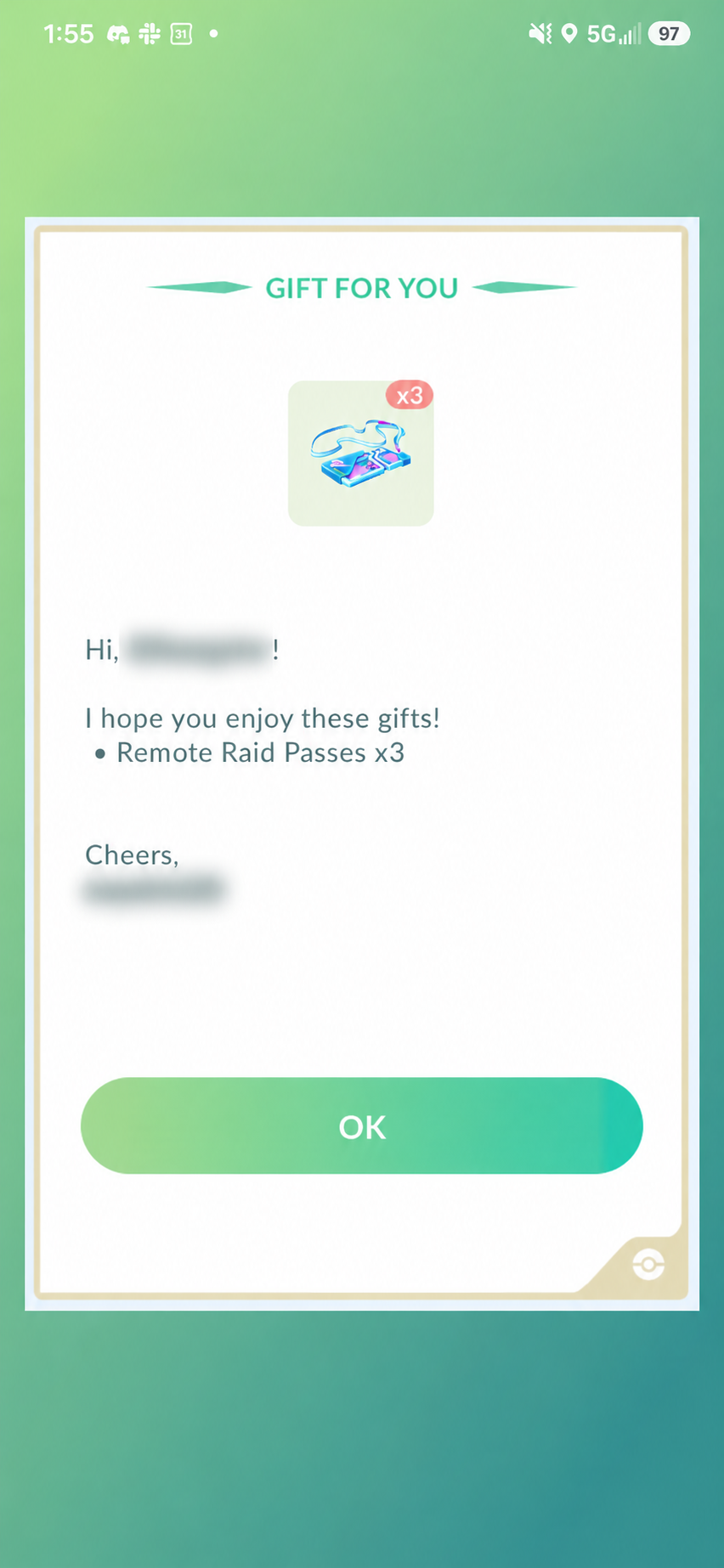
When a paid gift has already arrived, you’ll see it in a pop-up and in your Journal, and if you’ve enabled push notifications, you’ll also receive a notification on your phone. Switching off future gifts won’t give the sender a way to recall a completed delivery.
If a friend has made a purchase and you become ineligible before it is sent, the game may offer them another recipient or the option to request a refund. If you’re the sender and a purchase has gone through but the gift hasn’t been sent, check the Gift button at the top of your Item Bag for the available recovery options.
Pokémon GO Help Center – Paid Gifts.
Related Guides: How to Turn Off Paid Gifts in Pokémon GO
- How to Send Paid Gifts in Pokémon GO
- Pokémon GO Paid Gifts Not Showing Up
- Pokémon GO Paid Gift Countries
- Pokémon GO Can’t Send Paid Gifts
- Pokémon GO Paid Gift Daily Limit
- Pokémon GO Paid Gift Items
- Can You Gift PokéCoins in Pokémon GO
- Pokémon GO Champions Celebration GO Pass Deluxe
- Pokémon GO Champions Celebration Free Raid Passes