GTA 6 Best Xbox Settings start with the screen you’re playing on, not somebody else’s screenshot of a brightness slider. Your console decides which picture and sound format is sent to the television, while the game controls aiming, camera behaviour, subtitles and the minimap. Checking the console’s output can help more than copying a preset made for a completely different TV.
A Series X with a 4K OLED needs different video output choices from a Series S connected to a 1080p monitor. GTA 6 Best Xbox Settings should match your equipment, not a viral preset. Start with the console, check the picture in both daylight and night scenes, then make the smaller gameplay adjustments inside Leonida.
Set the right resolution and refresh rate
Press the Xbox button and open Profile & system > Settings > General > TV & display options. Choose the native or recommended output resolution for your screen. A compatible 4K TV will typically accept 4K UHD, while a 1080p monitor is better matched to 1080p. Check 4K TV details if an expected option is missing.
You may see a 120 Hz refresh-rate choice on your console. That is what the Xbox and display can exchange, not proof that GTA 6 renders at 120 frames per second. Do not force a refresh option your screen or cable cannot handle. A 120 Hz output setting does not unlock a 120fps mode in the game.
GTA 6 Best Xbox Settings: HDR, TV Game Mode and VRR
Enable HDR10 only when the TV supports it well, then run Calibrate HDR for games on Xbox. Some displays offer HGiG for more faithful HDR calibration; if yours does, compare it with its normal Game mode. If every dark room becomes grey or bright pavement clips to white, revisit the HDR setup instead of maxing out every brightness slider.
Turn on Variable Refresh Rate where Xbox and the screen both support it. VRR can improve the appearance of uneven frame delivery, but it cannot force a game to run faster. Disable motion interpolation on the television, which often adds input lag. GTA 6 Best Xbox Settings should leave driving and aiming responsive while preserving detail in shadows.
Make the controller feel right
In GTA 6, press the Menu button to pause and choose Settings > Controller. Try small changes to look and aim sensitivity. If you struggle to keep a moving target in view, a modestly lower value may be easier to control; if turning around feels slow, increase it gradually. Test on a quiet street rather than in the middle of a police chase.
Check your current control scheme before copying somebody else’s button advice. Grand Theft Auto VI has its own default scheme, and Classic Controls can feel more familiar to long-time GTA players. GTA 6 Best Xbox Settings are personal at this stage: you want predictable movement and comfortable camera controls, not the largest number on the slider.
GTA 6 Best Xbox Settings: Navigation, subtitles and camera display
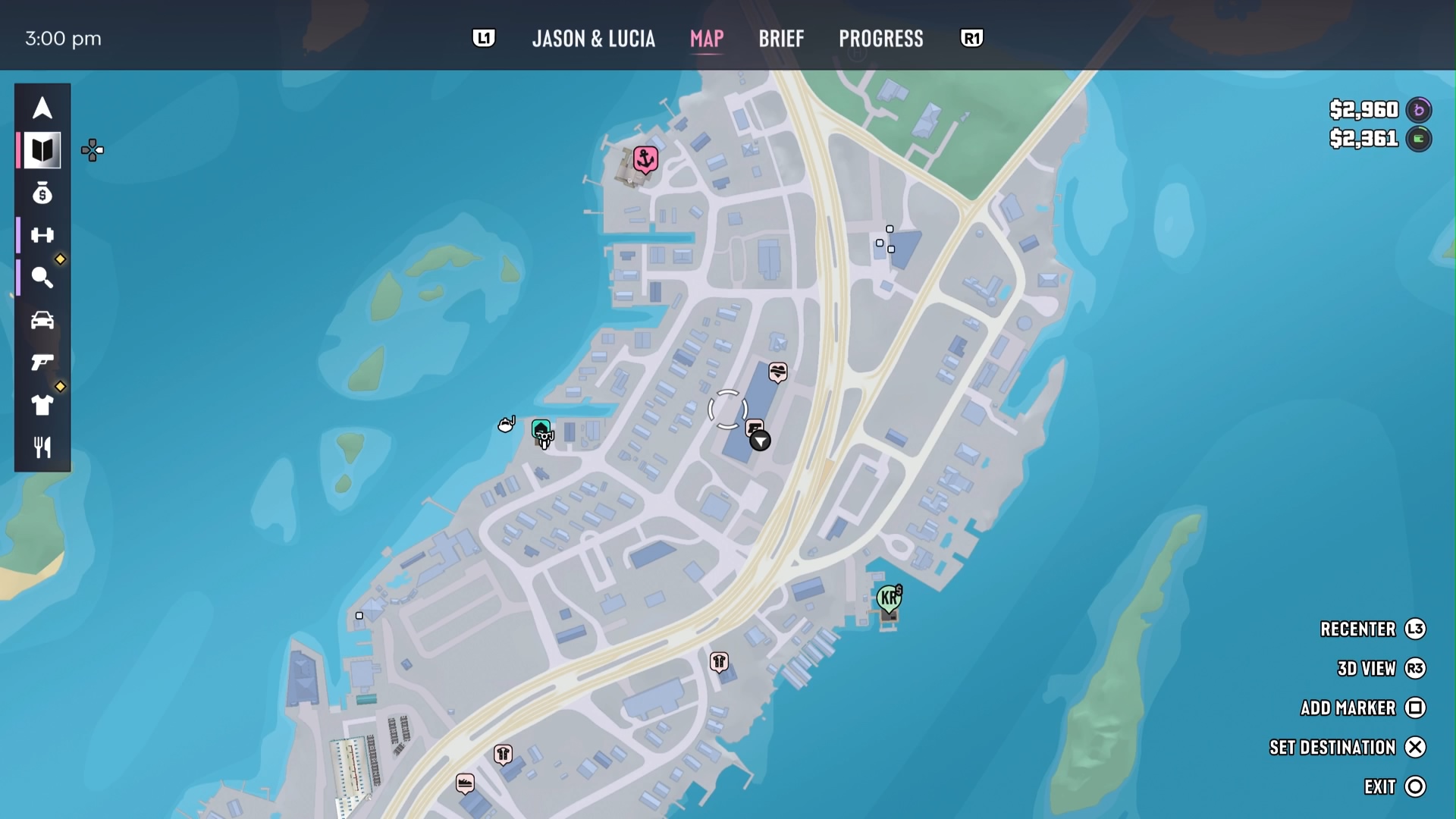
Visit Settings > UI > Navigation if the minimap vanishes during an ordinary drive. Setting Minimap to On keeps the guidance visible more consistently than Dynamic, while the compass can be controlled separately. The Navigation Experience preset you picked at the beginning does not lock you into that display permanently.
Turn on subtitles or speaker names if dialogue is getting lost under engine noise. You can also inspect camera options in Settings, especially if a fast camera makes you feel uncomfortable. GTA 6 Best Xbox Settings can make the game easier to read without changing its story difficulty, mission progress or the locations available on the map.
GTA 6 Best Xbox Settings: Audio options on Xbox Series X and Series S
The Xbox dashboard has General > Volume & audio output for speakers, television audio and supported headset formats. Stereo uncompressed is a sensible starting point for ordinary television speakers or a stereo headset. Windows Sonic for Headphones or other spatial formats may make sense if your setup supports them, but do not pick an output format that your television or receiver cannot decode.
Inside GTA 6, adjust music, speech and effects balance under Audio. A loud car radio should not make conversations impossible to hear. Compare a street scene with a quiet indoor conversation before deciding the mix works. There is no single Xbox audio preset that is best for every television, soundbar and headset.
If the picture still looks wrong
If an expected 4K, HDR or VRR option is missing, check the television’s HDMI input mode, cable and Xbox 4K TV details. Some TVs only enable advanced features on certain ports or after you switch that input into an enhanced format. Change one setting at a time so you can work out which option helped.
Avoid deleting Grand Theft Auto VI or your saved game just because an HDR scene looks flat. GTA 6 Best Xbox Settings are mostly adjustments you can undo immediately. Once the picture, controls and sound feel right, keep them and spend that time exploring Vice City instead of continually chasing somebody else’s numbers.
Official source: Xbox Support, 4K Gaming and TV Display Options.