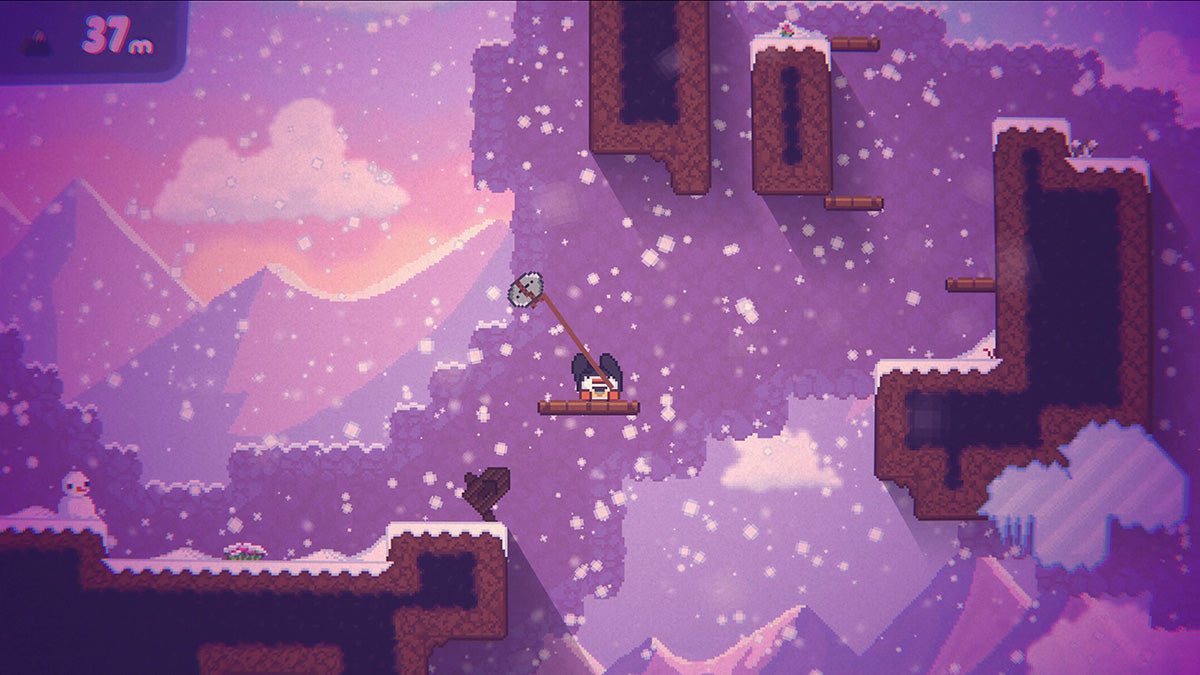
Bread and Fred online multiplayer connects you and a friend using a lobby code, which means one of you needs to host the game while the other joins with the code displayed on the host’s screen. Character selection only becomes available once both players are connected, so you’ll need to get your friend into the lobby before you can choose your penguin.
Getting into the same session can be a little frustrating, particularly if the game rejects a code you’ve entered correctly or drops your connection while you’re joining. Before you give up on your climb, there are a few things worth checking on both computers.
How to host Bread and Fred online multiplayer
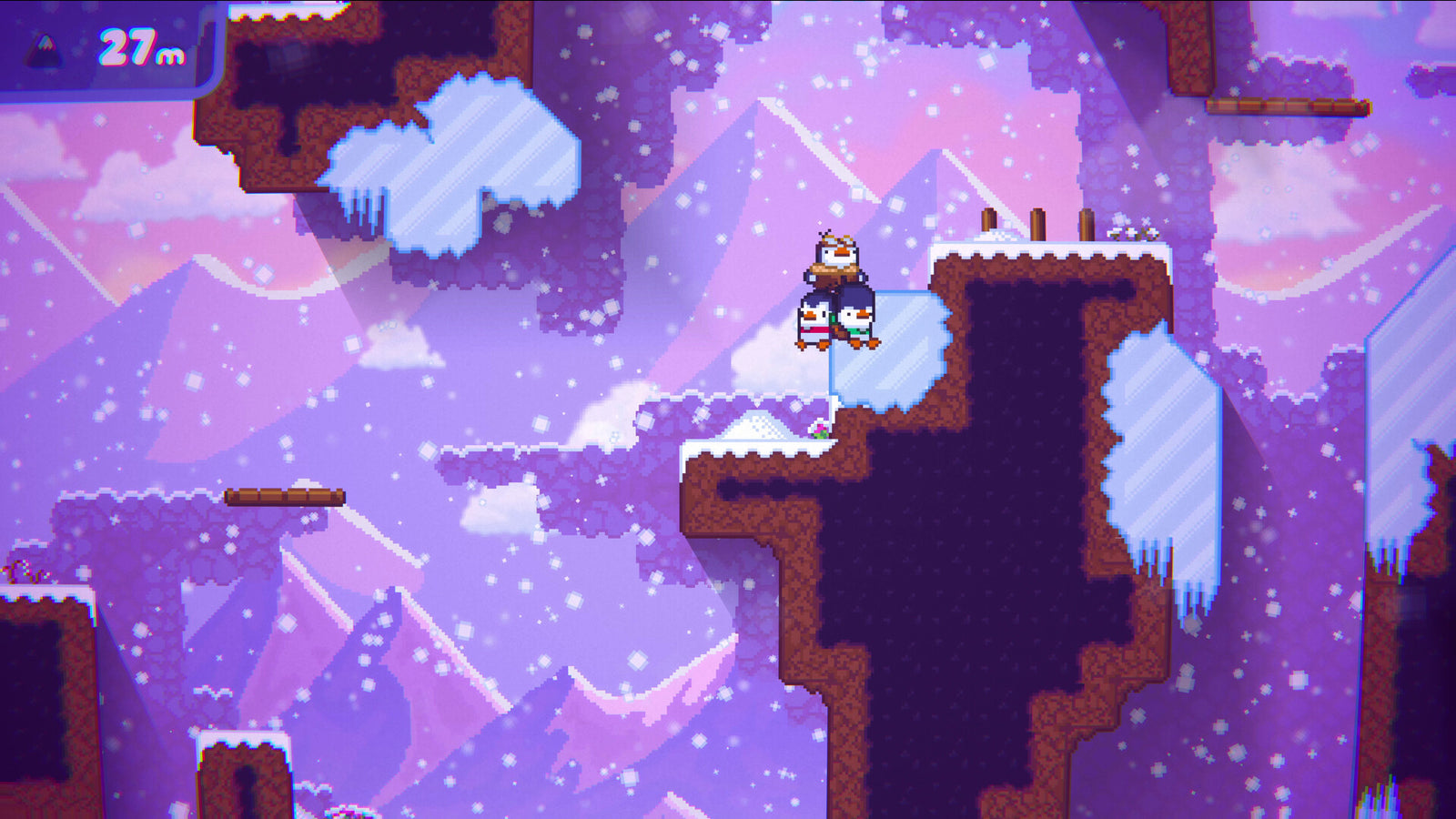
Once you’ve decided who’s hosting, select a save file in Bread & Fred, open the Multiplayer menu and choose Host Online. You’ll see a code appear at the top of your screen, which you can send to your friend while you wait for them to connect.
Stay on that screen while your friend enters the code, as you don’t need to choose your penguin or start the climb before they’ve joined the lobby.
How to join friends in Bread and Fred online multiplayer
If you’re the person joining, select your save file and open Multiplayer, but choose Join Online rather than Host Online. Enter your friend’s code, then look for both of your usernames in the top-left corner of the screen; once you’re connected, you can choose your characters and begin the climb.
If you’re used to inviting friends through Steam, Bread and Fred online multiplayer now uses the in-game code instead. The older Steam invitation system was replaced to support cross-platform multiplayer, so there’s no need to hunt for an invitation button through your storefront.
Why can’t I select a character?
If your Bread and Fred online multiplayer session seems stuck at character selection, check the top-left corner of your screen for your friend’s username. The host can’t select a character while waiting alone, so if you only see your own name, your friend still needs to connect.
Ask your friend to double-check that they’ve selected Join Online and entered the code from the session you’re currently hosting, especially if you’ve backed out and started setting up the lobby again. Two players both selecting Host Online will end up waiting in separate sessions.
Bread and Fred online multiplayer incorrect code fix
The Incorrect code error can appear even when you’ve typed the right code, so it’s worth trying again before creating a new lobby. If it keeps happening, the host should check whether their firewall is blocking incoming connections from the game. Windows may have displayed a prompt when you first attempted to host, and denying network access can prevent your friend from connecting.
If you’ve previously blocked Bread & Fred, allow the game through the firewall rather than turning your firewall off altogether. A Lost connection error can also appear when hosting or joining, in which case retrying the connection is worth a go, followed by checking your internet connection on both computers if the error continues.
How to report a multiplayer bug
If you’re still struggling to get a session running, you can report the problem to contact@breadandfred.com with the error message and details of whether you’re hosting or joining. If support asks for your Player log, you’ll find it in AppData/LocalLow/SandCastles/Bread_Fred inside your Windows user folder. Typing %USERPROFILE% into the File Explorer address bar will take you to the right user folder.
If your Bread and Fred online multiplayer connection still isn’t working and you’re in the same room as your climbing partner, you can switch to local multiplayer instead. Single-player mode is also an option if you want to practise on your own, swapping the second penguin for a rock called Jeff.