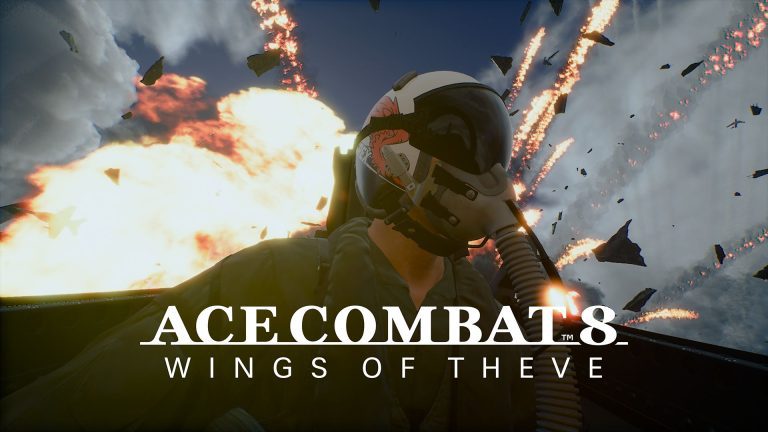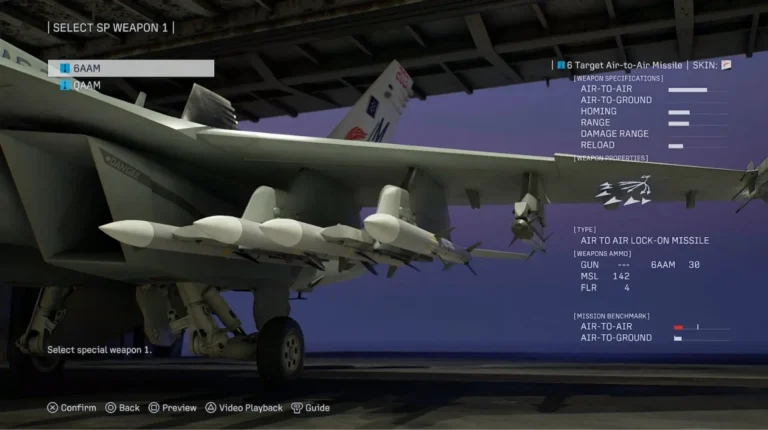
ACE COMBAT 8 Matchmaking Not Working can leave you searching for opponents indefinitely, or send you back to the online menu as a mission loads. Project Aces has acknowledged the problem. In an October 9 notice, it identified certain PC setups as one possible reason matches fail to start.
Bandai Namco’s first PC checks are straightforward: use Windows 11 and install the game on an SSD. The studio has also suggested synchronising Windows time for a particular connection error. What helps depends on whether you’re stuck in a queue, thrown out as a mission starts or seeing an error code.
Why Is ACE COMBAT 8 Matchmaking Not Working?
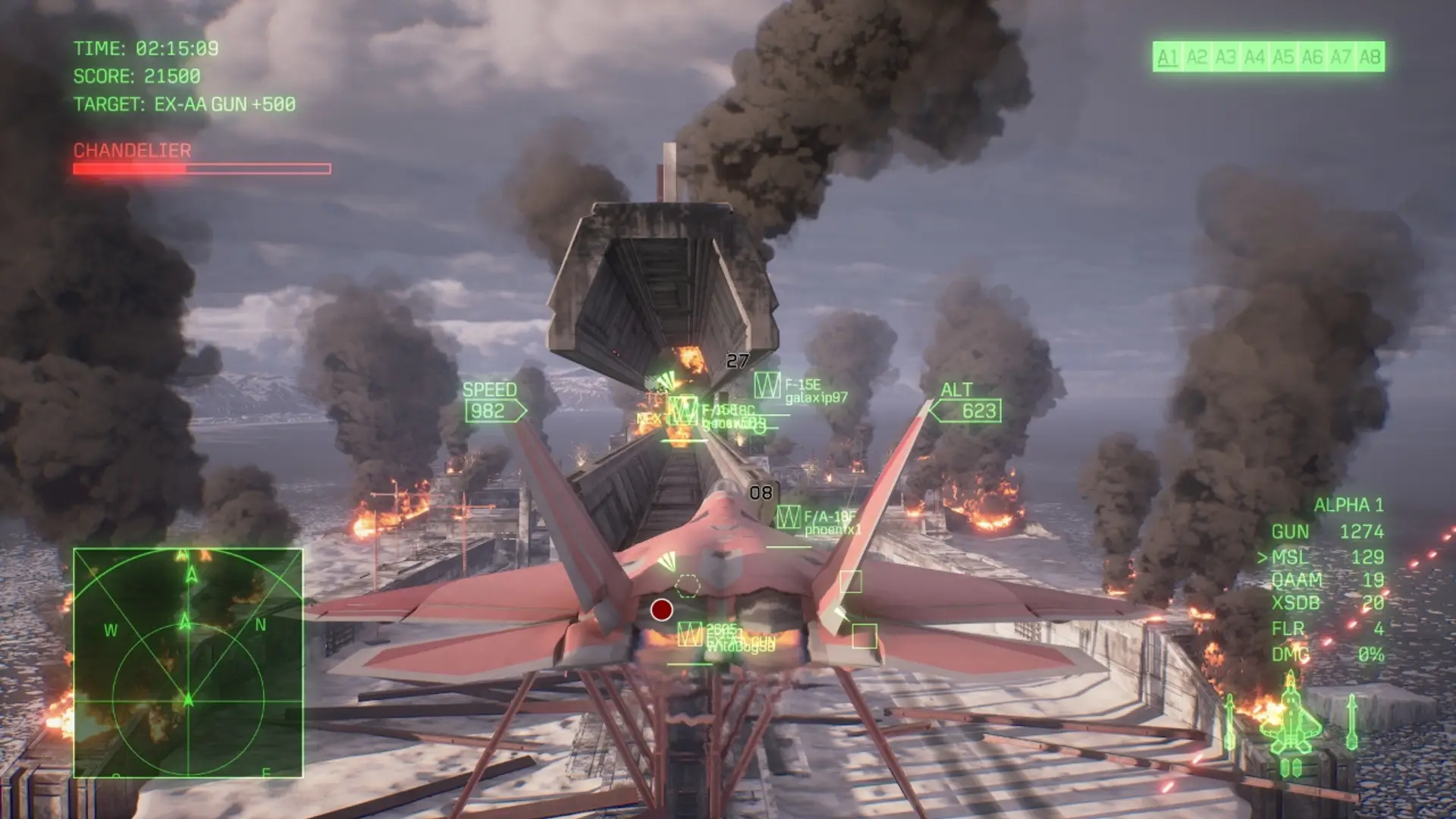
Project Aces says unsupported PC environments can make a match harder to establish, sometimes affecting other players in the same session. That’s a possible contributing factor, not proof that your hardware caused every failed queue. Even a supported PC can encounter connection problems.
If you’re stuck at Waiting to Match, note whether the queue ever finds a lobby. If you select an aircraft and then get sent back to the title screen, note that separately. They aren’t necessarily the same fault.
ACE COMBAT 8 Matchmaking Not Working: Windows 11 and SSD
Windows 11: Project Aces officially supports Windows 11. To check what you’re using, press Windows + R and type winver. Other Windows versions may behave differently from the developer’s tested environment. Don’t assume upgrading Windows is a guaranteed matchmaking fix.
SSD: Bandai Namco has seen players running the game from a hard drive and says slow loading and instability can affect matching. Open the game’s Steam Properties and Installed Files to check the installation drive. If it’s on an HDD, Steam’s Storage settings can move it to an SSD without reinstalling Windows.
Windows 11 and an SSD are the developer’s recommended environment, not guaranteed repairs. Check them before trying random network tweaks or buying new hardware.
ACE COMBAT 8 Matchmaking Not Working: Waiting to Match and Timeouts
Check official Ace Combat news for maintenance first. If the service is undergoing work, restarting your PC won’t bring the servers back. Otherwise, try these checks in order:
- Cancel the queue and make one fresh attempt.
- Restart the game and check your installed version.
- Check Windows 11 and SSD installation on PC.
- Try one other online mode to see whether only a particular queue fails.
- Record the full error message, selected mode, and stage at which it failed.
If the queue still fails, keep the exact message and time of the attempt. That gives support something specific to investigate.
ACE COMBAT 8 Matchmaking Not Working: ST-3100001
For ST-3100001, Project Aces has published specific advice. This error can appear when communication with the online server is lost. The developer suggests checking that the Windows system clock is synchronised.
- Open Windows Settings, then Time & language and Date & time.
- Turn on Set time automatically and check the time zone.
- Choose Sync now under Additional settings, then try another ACE COMBAT ONLINE match.
The clock step won’t help everyone. Some players still report ST-3100001 after synchronising. It is worth trying for this code because Project Aces suggested it, but it is not an announced fix for ST-1000024 or for a server outage.
ACE COMBAT 8 Matchmaking Not Working: ST-1000024
Players report ST-1000024 when online matchmaking is cancelled, but Project Aces hasn’t confirmed the precise cause of this code. There’s no published guarantee that changing DNS settings, router ports or the Windows clock will fix it.
Earlier in October, the studio acknowledged penalties caused by matchmaking errors and held maintenance to clear affected accounts. If you still see a penalty or restriction, take a screenshot of the exact message and contact official support. The earlier notice doesn’t establish your account’s current status.
Does Update 1.01.002 Fix ACE COMBAT 8 Matchmaking Not Working?
The announced patch includes fixes for account creation not advancing, some Social features, controller reconnection during Steam mission startup and Military Training landings. It does not explicitly promise to repair every matchmaking timeout. The October 23 patch rollout was postponed, and a new date was not officially confirmed in the notices reviewed October 28.
The patch was postponed from October 23, with no new date confirmed in the notices checked on October 28. See our ACE COMBAT 8 Update 1.01.002 patch notes for its exact fixes. For multiplayer mode rules, use our Team Deathmatch and Co-Op Assault guides.
ACE COMBAT 8 Matchmaking Not Working on PS5 or Xbox
The Windows 11 and Steam SSD checks above are for PC players. On PS5 and Xbox Series X|S, check for announced ACE COMBAT ONLINE maintenance and make sure your console has downloaded the latest available game update. If you can enter the Air Base but can’t start a Co-Op Assault mission, note the mode, error code and time. Project Aces hasn’t announced one console setting that reliably repairs every matchmaking failure.
ACE COMBAT 8 Matchmaking Not Working: When to Contact Support
For repeated ACE COMBAT 8 Matchmaking Not Working, send your platform, Windows version, installation drive, game version, mode, exact code and time of failure. Specify whether you were searching, loading or returning from a match.
A crash to desktop is a different problem; our PC crash guide covers the developer’s temporary pagefile workaround. If the game keeps running but the controls stop responding, use our controller troubleshooting guide.
If ACE COMBAT 8 Matchmaking Not Working continues after these checks, report the exact failure and look for an official server or patch update. Don’t delete campaign progress or change several network settings at once.
- Ace Combat 8 Team Deathmatch Explained
- Ace Combat 8 Co Op Assault Explained
- Ace Combat 8 Co Op Warfare Explained
- Ace Combat 8 Crossplay Explained
- Ace Combat 8 Multiplayer Player Count
- Ace Combat 8 Online Progression Explained
- Ace Combat 8 Crashing On Pc
- Ace Combat 8 Controller Not Working On Pc
- Ace Combat 8 Pc System Requirements
- ACE COMBAT 8 Update 1.01.002 Patch Notes
Official publisher source: Bandai Namco’s ACE COMBAT 8 game page and PC requirements.