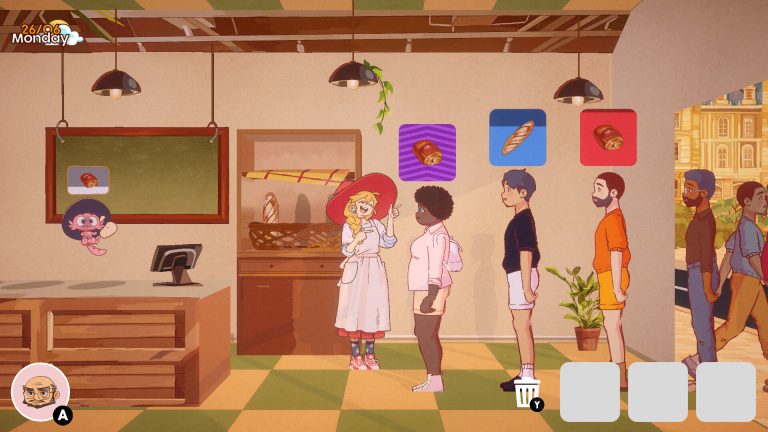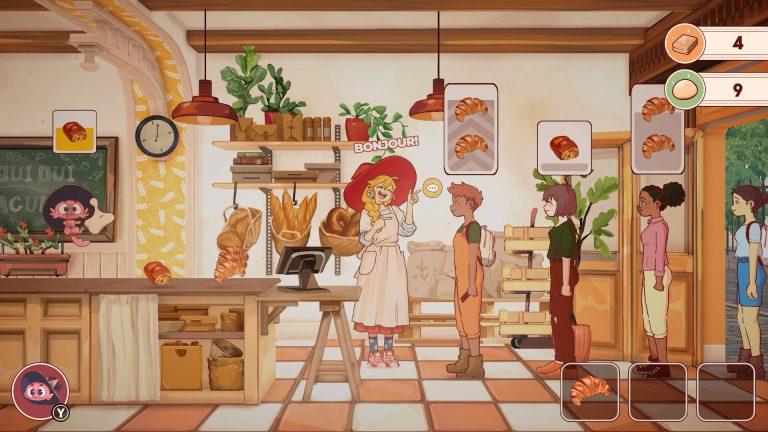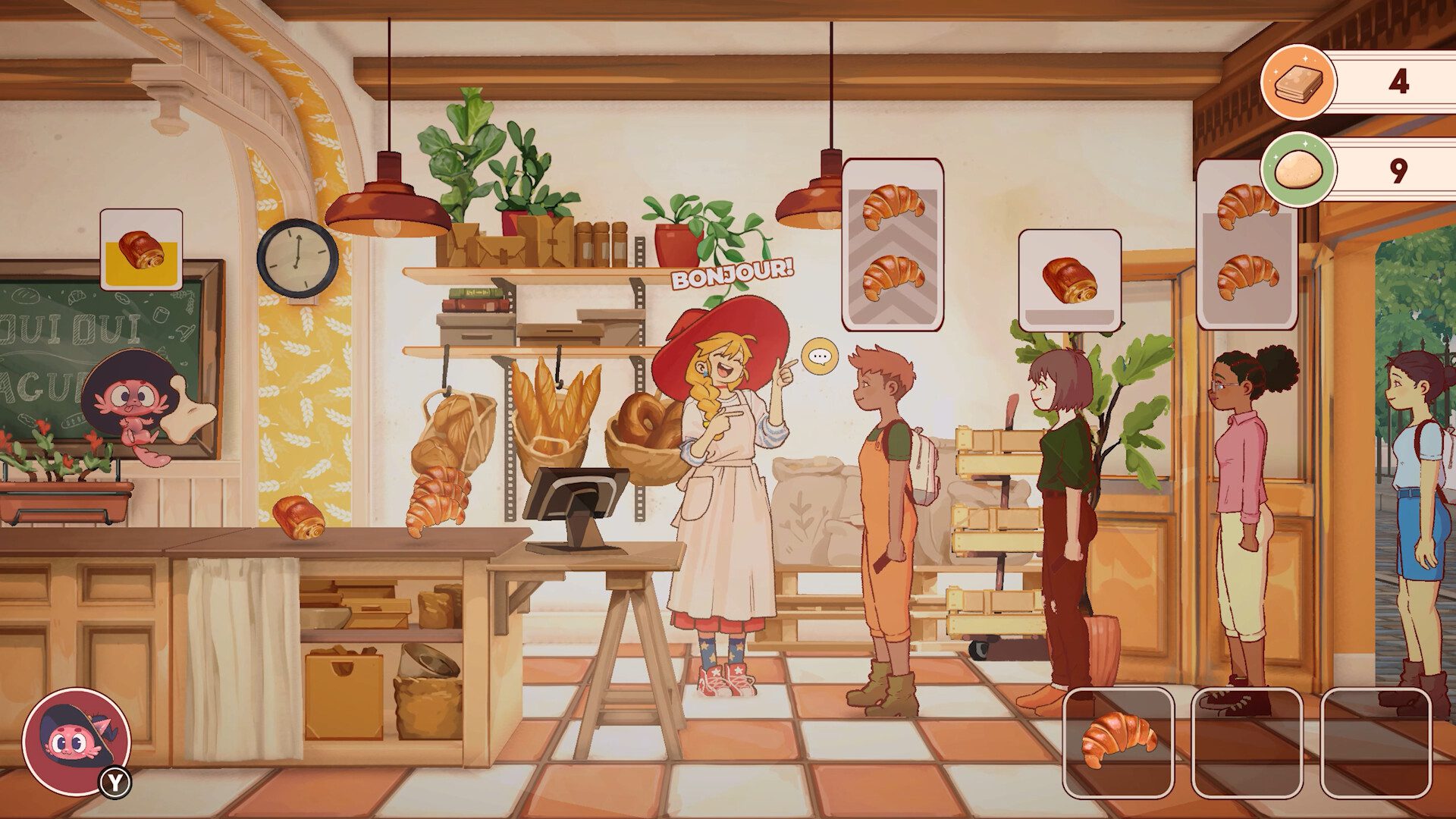
The Witch’s Bakery demo save is not compatible with the finished game. Sunny Lab has warned that Steam may offer a Continue button for your old demo progress, but loading that file can leave the full game stuck at a later point.
The developer’s launch-day fix has two parts: switch Steam to the Default Public Version, then choose New Game instead of Continue. Here’s how to do both, what happens to your demo progress and how to recognise a different problem that needs additional help.
Fix The Witch’s Bakery demo save issue on Steam
Follow these steps if you played the demo before buying the full PC game:
- Open your Steam Library.
- Right-click The Witch’s Bakery and select Properties.
- Open Game Versions & Betas. Depending on your Steam client, this section may simply be labelled Betas.
- Make sure the active version is Default Public Version, as specified by Sunny Lab.
- Let Steam complete any download or update before launching.
- Start the game and select New Game, even if Continue still offers your demo playthrough.
Those steps address both parts of The Witch’s Bakery demo save problem. The branch setting gets you onto the release version; starting fresh avoids loading data created by the older demo.
Why does the demo’s Continue option still appear?
The released game can detect an existing The Witch’s Bakery demo save, so it shows Continue even though that progress isn’t compatible with the retail build. Sunny Lab says the old file may appear to load at first but cause you to become stuck as you continue playing.
Because the failure might happen later, successfully opening your demo file once is not evidence that it can be transferred. The full game is a substantially changed version of the earlier playable demo.
Sunny Lab originally made the demo available to introduce its story and bakery systems. The developer later retired that branch, but this didn’t remove old save data from players’ computers. That’s why the game can still detect it.
Do you have to delete The Witch’s Bakery demo save?
No. The official instructions don’t tell you to delete The Witch’s Bakery demo save or edit Windows files. Choosing New Game in the correct release build is the action the developer recommends.
If you want to keep the old demo data for your own records, you can do so. It won’t be usable as a continuing retail playthrough, but leaving it on your PC is not the same as loading it. Avoid deleting files or changing save data in an attempt to make it compatible unless Sunny Lab issues new instructions.
If you played the demo for several hours, you will unfortunately need to replay that early portion in the full version. Starting over is inconvenient, but it is the confirmed way to avoid the incompatible-save blocker.
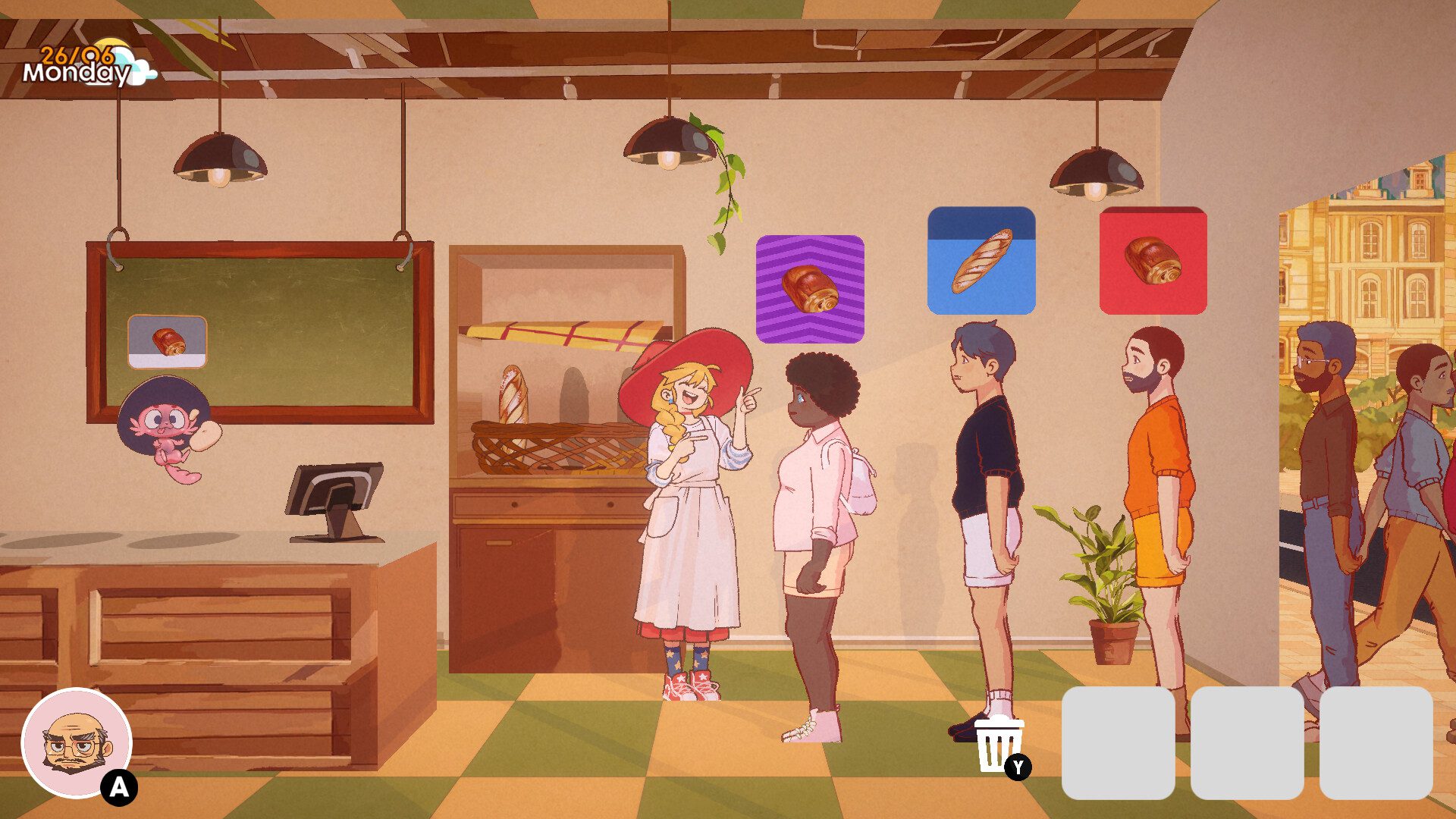
What if the full game is already stuck?
If you chose Continue on The Witch’s Bakery demo save and later reached a screen that won’t progress, first exit the game and check that Steam is running the Default Public Version. Then select New Game from the main menu and begin a fresh release-version playthrough.
Sunny Lab hasn’t published a supported conversion tool for old demo saves. Repeatedly loading the same incompatible file isn’t a reliable fix, and swapping Steam branches back and forth cannot change the underlying save format.
If a completely new playthrough on the current version gets stuck, the cause may be unrelated to the demo. The studio asks players to consult its Steam Discussions for existing bug reports and add their details, or report a new problem if necessary.
How do you check which Steam version is installed?
The Witch’s Bakery demo save instructions refer specifically to the PC release on Steam. Open the game’s Properties, navigate to Game Versions & Betas and look for Default Public Version. Steam will normally manage the update once you select the appropriate public branch.
Sunny Lab removed the demo branch after launch to reduce the chance of starting the wrong build. That should make the version selection simpler, but it doesn’t automatically make the old Continue option safe to use.
The same Steam instructions cannot be applied to PlayStation, Xbox or Nintendo Switch, where version management is handled differently. The developer’s 14 October warning was about PC players who had installed the demo.
Does The Witch’s Bakery demo save work on consoles?
The published The Witch’s Bakery demo save warning is a Steam-specific notice. It references the Steam Library, game Properties and the Default Public Version setting. Sunny Lab hasn’t described a matching console save transfer procedure in that announcement.
If you have a problem with a console copy, start by ensuring the game is updated through that platform. Don’t follow instructions to edit PC files on a console; a console-specific issue requires a platform-specific solution.
Official developer help and other guides
Sunny Lab published the warning on 14 October 2026, the full game’s release day. The confirmed answer remains to launch the public version and start over instead of continuing a demo file.
For the developer’s instructions, visit The Witch’s Bakery official Steam announcements and find the 14 October demo-save warning. Our Estelle second-heart romance bug guide explains a different progression issue, while the PC requirements and release and platform pages answer setup and purchasing questions.