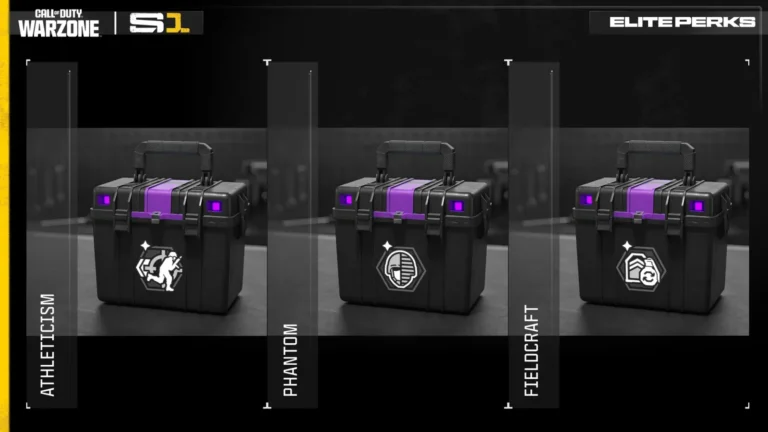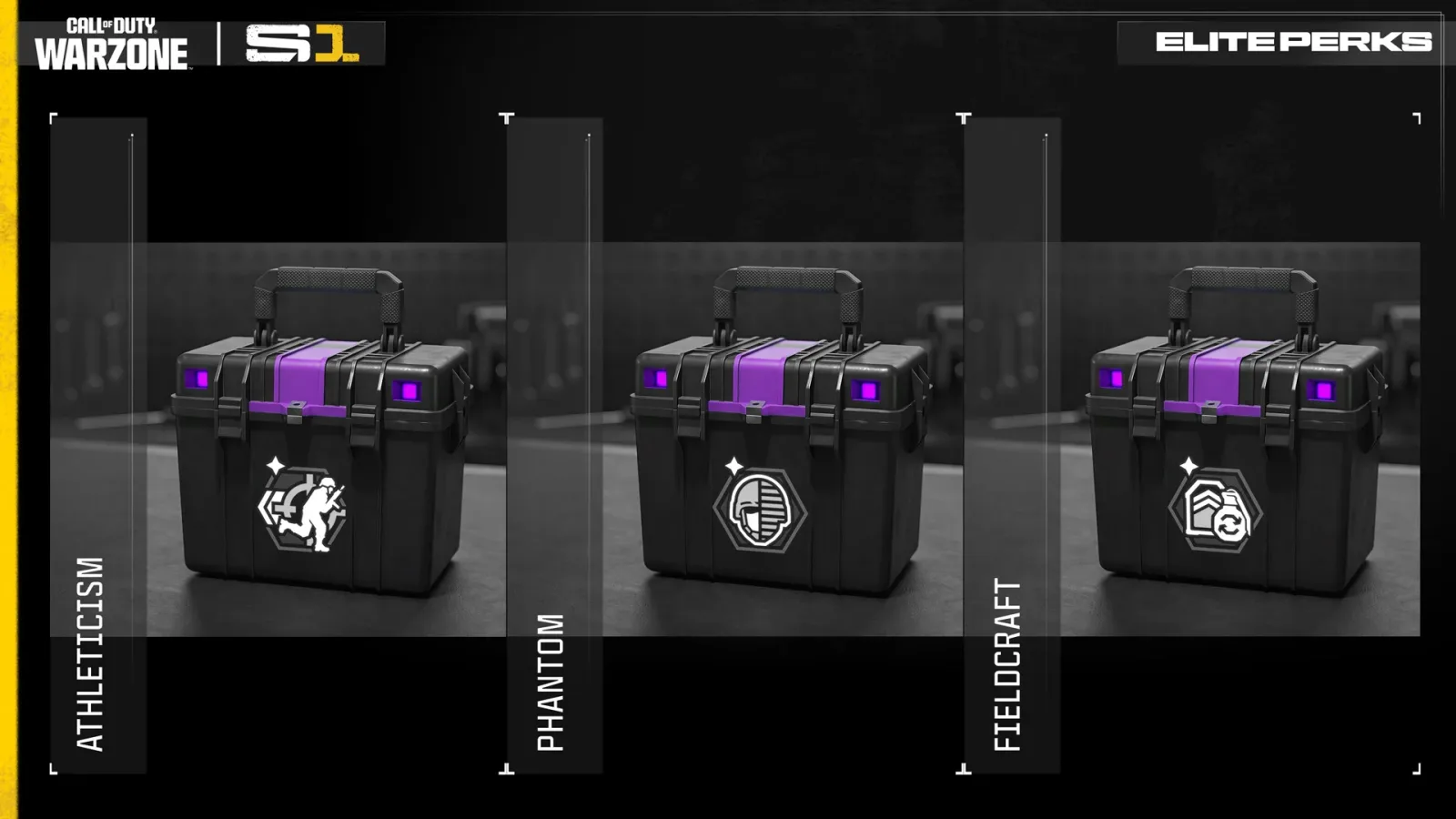
Warzone Perk Icons can turn grey even when the perk is still equipped. In Season 1, the HUD dims a perk when its activation conditions aren’t met, shows a normal icon for passive benefits and highlights one when a conditional ability kicks in. So if you’ve spotted a dark perk icon mid-match, it doesn’t automatically mean anything is broken.
The display is most confusing with perks that have more than one effect. Drill Instructor, for example, boosts squad sprint speed all the time, but its healing effect needs sustained sprinting. The new display makes that distinction visible during a fight. Here is how to read it without mistaking normal behaviour for a bug.
Why are Warzone Perk Icons greyed out?
The perk tray has three looks, and they mean different things. When an effect isn’t available yet, the icon is dim. A normal icon means a passive benefit is working. And when a condition has been met, the icon lights up. You don’t need to memorise a colour for every perk, just learn what the change means.
Say you’re waiting for a perk to activate. Its icon may stay dark until the right moment, then brighten when the effect starts. That doesn’t mean you’ve lost the perk between those moments. It means the condition hasn’t been met yet.
Warzone Perk Icons: inactive, passive and active states
| Appearance | Meaning | Example |
|---|---|---|
| Dim / inactive | Activation conditions have not been met | A conditional movement or combat perk waiting for its trigger |
| Normal / passive | An always-on bonus is applying | Drill Instructor’s squad sprint-speed effect |
| Highlighted / active | A conditional benefit is currently triggered | Drill Instructor’s health regeneration after sustained sprinting |
Not every perk will change between the three colours every few seconds. Always-on bonuses can sit in the passive state for long stretches. Triggered perks may only light up briefly. The display shows what’s working right now, not the perk’s rarity.
Think of it like a status light, not a lock symbol. The perk can still be in your loadout even when the ability you want hasn’t kicked in.
How Drill Instructor changes the Warzone Perk Icons display
Drill Instructor provides a squad sprint-speed bonus that does not stack with other copies. That benefit is passive, and Raven says the display uses its normal opacity to show it is working. When you sprint continuously long enough to begin health regeneration, the icon switches to the highlighted active state.
You can see this with Drill Instructor. The squad sprint bonus is already helping, but its icon becomes highlighted when sustained sprinting starts health regeneration. You haven’t equipped a second perk; the display is telling you that another part of the same perk has switched on.
Where to look for Warzone Perk Icons on the HUD
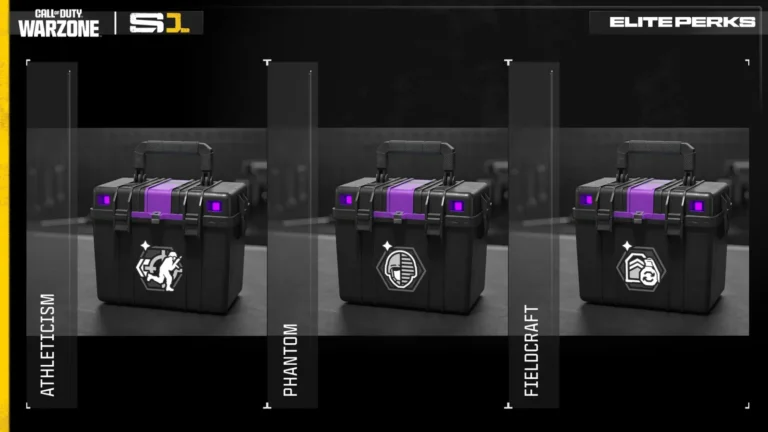
Season 1 separates the Perk Tray into three groups at the bottom of the HUD. Looted perks get up to six individual spaces. Elite Perks have one dedicated fourth-slot position. The three perks attached to your custom loadout appear together after you acquire that loadout.
The separate groups also explain why one new perk icon doesn’t necessarily match your chosen class. Deft Hands sits among your three loadout perks. Phantom takes the single Elite slot after you buy or find it. A perk from a Perk Supply Box goes with the looted perks, so it appears in a different part of the tray.
Are dim armor pips and grey Warzone Perk Icons the same issue?
No. Raven separately acknowledged an armor-pip display problem on November 12: squad HUD armor indicators could look dim unless the player’s armor was full. Those pips are the armor graphics next to squad information, not the perk tray. The armor issue was under investigation in those patch notes, whereas an inactive perk icon is intentional.
A dim armor indicator is a different problem. It’s shown beside your squad’s health and armor, not among your perks. If the perk tray itself looks unusual, check the name and trigger conditions first. If you’re looking at armor pips that stay dim until armor is full, Raven recorded that as a known HUD issue on November 12.
Do Warzone Perk Icons still show perks that are equipped?
A grey perk icon is not a reason to buy a replacement. First make sure the perk is still shown in the right tray group, then look at the condition in its description. Most of the time, the icon is doing exactly what Season 1 intended.
Read the perk tray like a quick status check: dim means waiting for its trigger, normal means a passive bonus is running, and highlighted means a conditional effect is active. Once you recognise the three states, you can judge when a perk is helping without opening the loadout screen mid-fight.
Official source: Raven Software Warzone Season 1 patch notes.