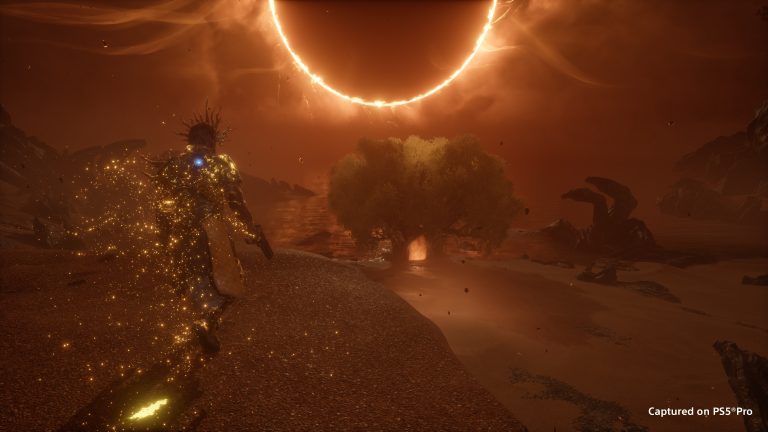
Saros Zenith accessibility settings give PS5 players more control over Housemarque’s demanding combat without removing the colourful projectile patterns that make the game so distinctive. The free 19 October 2026 update introduces Slow Game Speed, automatic firing while aiming and Motion Sensor Aiming, alongside the existing button remapping tools.
If you’ve struggled to follow attacks while concentrating on movement, these new options are worth trying before giving up on a difficult boss. They also work for players who want to reduce the number of buttons they need to hold during a fight. Here’s how each feature changes the experience and what it still leaves up to you.
What are the new Saros Zenith accessibility settings?
The Saros Zenith accessibility settings introduced in the free update include three headline additions: Slow Game Speed, Auto-fire and Motion Sensor Aiming. They were described by Housemarque design lead Abebe Tinari in the official 19 October announcement.
The goal of Saros Zenith accessibility settings is to make the combat easier to read and control while keeping the original projectiles and attacks intact. That means you can spend more time seeing what’s happening and deciding how to respond rather than having the game remove the enemies’ most demanding moves.
The new options sit alongside existing control customisation, including button remapping. None of them require buying a separate edition or expansion if you already own Saros.
How Slow Game Speed works
In Saros Zenith accessibility settings, Slow Game Speed gives you more time to react to enemy attacks. It slows the action so hostile projectiles and attack warnings are easier to see, which can help you decide whether to jump, dash, raise your shield or attempt a parry.
The important part is that attacks aren’t removed. You still have to recognise their patterns and avoid the damage, but you have more time to process what’s coming towards you. That can be especially helpful when several enemies fill the screen with projectiles at once.
Housemarque says you can choose how much slowdown to apply. You can also select whether it activates automatically during combat or only when manually toggled. Experimenting with both methods is worthwhile, since some players prefer constant assistance while others only need it when a fight becomes chaotic.
How Auto-fire works in Saros
Another of the Saros Zenith accessibility settings is Auto-fire. With it enabled, your weapon fires when you’re aiming at a hostile. You don’t need to keep holding the fire button for the entire encounter, which can reduce finger strain and let you focus on moving safely.
Auto-fire does not perform perfect reloads automatically. Housemarque explicitly keeps reloading as a timing-based action, so you’ll still need to press the correct button at the right moment if you want to execute it perfectly.
That makes Auto-fire useful for simplifying the basic shooting input without turning the game into something that controls every part of combat for you. You still decide where to aim and when to reposition, and reload timing remains your responsibility.
Motion Sensor Aiming and button remapping
Saros Zenith accessibility settings also introduce Motion Sensor Aiming, giving players another way to control where their shots go. The announcement places it alongside the game’s existing button remapping system, which allows players to customise input arrangements to suit their needs.
Motion controls can be useful if you find fine aiming difficult with an analogue stick or prefer to make small corrections by moving the controller. How comfortable that feels is personal, so try it in a less stressful encounter before relying on it during a demanding boss fight.
The public update article confirms the feature but doesn’t lay out an exhaustive menu-by-menu list of sensitivity options. It’s better to explore the controls settings in your installed version than assume every control parameter from another shooter will exist here.
Do the new settings make Saros easy?
The Saros Zenith accessibility settings can make combat more manageable, but they aren’t a guarantee you’ll beat a difficult encounter. Slowing the game gives you more reaction time; Auto-fire reduces one repeated button action; Motion Sensor Aiming provides another control method.
You’ll still need to pay attention to projectiles, positioning and enemy attack patterns. For instance, a perfectly timed dash remains useful even when everything is moving a little more slowly, and forgetting a reload can still leave you exposed.
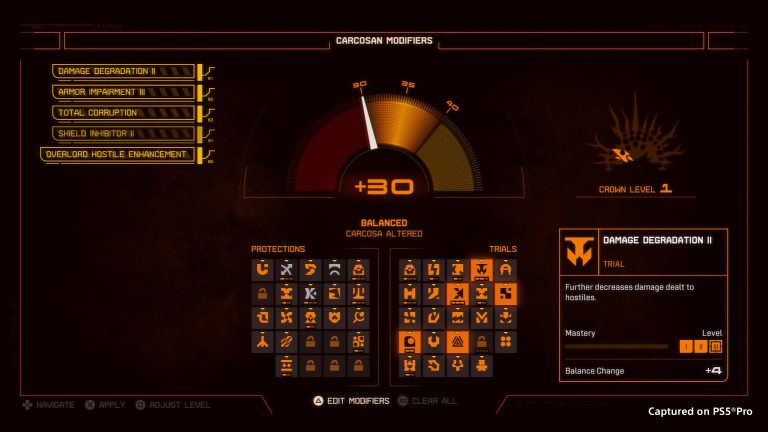
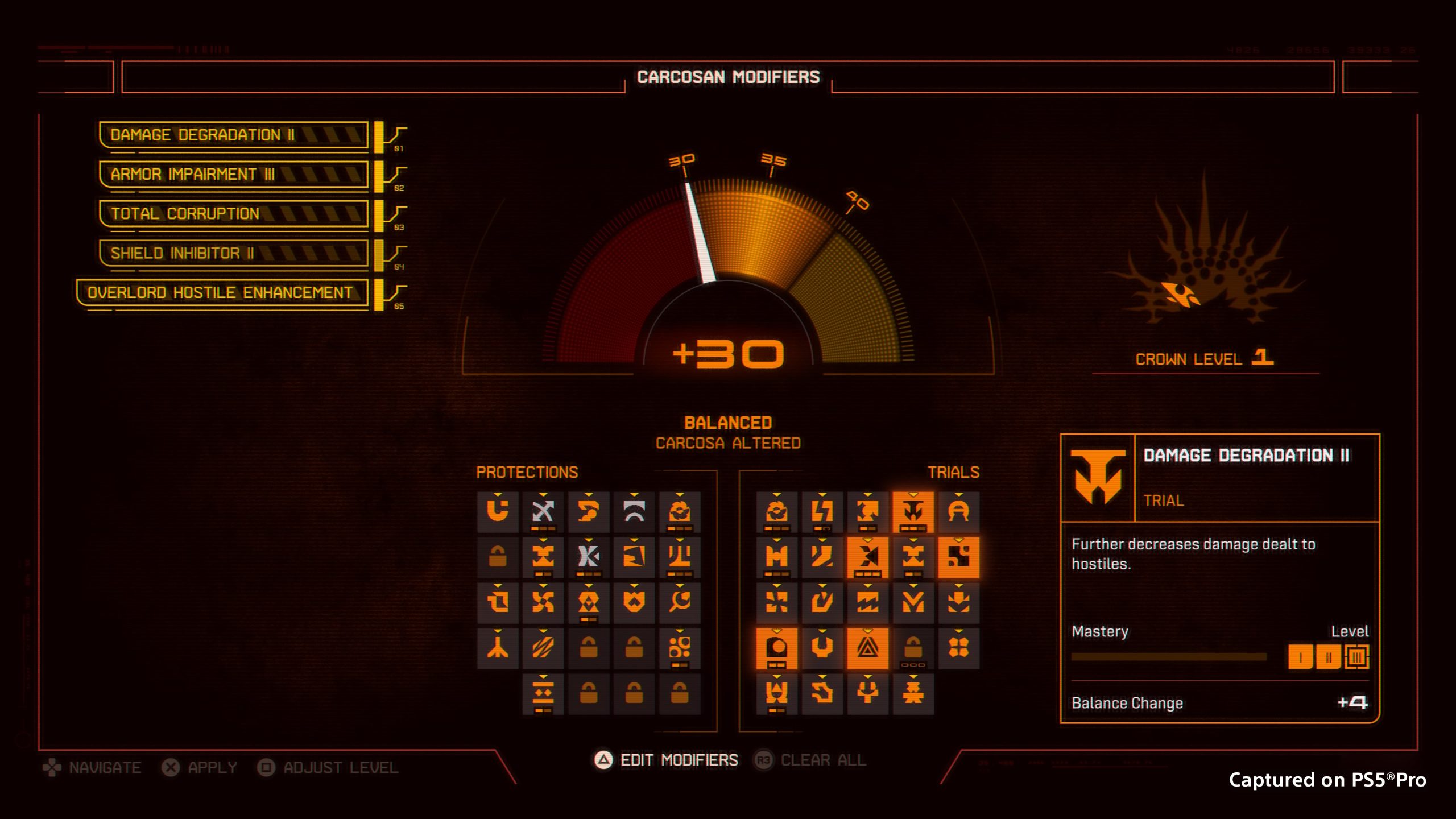
Players who want an additional challenge can go in the opposite direction with Carcosan Trial Modifiers and Eclipse Layers New Game+. The free Zenith update supports both sorts of players rather than forcing everyone towards the same level of difficulty.
Which option fixes the problem you’re having?
| Problem | Option to try | What it changes |
|---|---|---|
| Bullets move too quickly to read | Slow Game Speed | More time to respond; the projectiles remain in play |
| Holding fire is uncomfortable | Auto-fire | Fires while you’re aiming at an enemy; perfect reloads remain manual |
| Fine aiming with the stick is difficult | Motion Sensor Aiming | Another way to aim using controller movement |
| Actions are hard to reach | Button remapping | Change where frequent actions are assigned |
If you often get hit because a projectile arrives before you can respond, start with Slow Game Speed. Try a modest slowdown and increase it only if you’re still struggling to see the attacks. If holding down the fire button is uncomfortable, Auto-fire is the more direct change.
Motion Sensor Aiming is worth testing if the aiming input itself is the difficulty. You can also review the button layout to move frequently used actions such as dash, shield and reload to positions you can comfortably reach.
When adjusting Saros Zenith accessibility settings, the best approach is to change one option at a time so you can tell whether it helps. You might find the right combination makes the same enemies feel easier to understand without taking away the fun of improving at the game.
Where to find the official Zenith details
All three features arrived with the free Zenith update on 19 October 2026. The new accessibility options don’t depend on finishing the story first in the way Eclipse Layers does, so they’re especially useful to players progressing through the main campaign.
Our Saros platform guide covers its separate PC release question, while best shooters of 2026 explores other action-heavy games.
For the developer’s explanations, read Housemarque’s official Saros Zenith accessibility settings announcement on PlayStation Blog.