Aniimo Download Stuck at 0%, rolling backward or barely moving is one of the main mobile launch problems covered by Pawprint Studio’s own troubleshooting guidance. The fixes start with the connection and available storage, then move to VPN, DNS and reinstall steps if the download still refuses to progress.
Do not immediately wipe the app if you are only seeing a short pause during a busy launch period. Aniimo’s official guidance specifically notes that peak-hour CDN congestion can slow downloads and updates. Work through the simpler checks first, especially if the percentage moves occasionally rather than remaining completely frozen.
How to Fix Aniimo Download Stuck at 0%
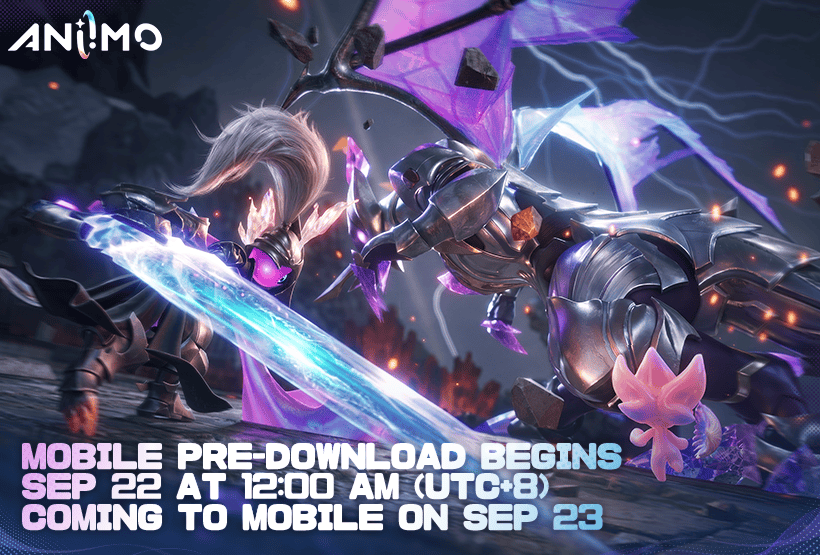
Aniimo Download Stuck Image Pawprint Studio.
The official Aniimo mobile FAQ gives a specific sequence for a download that is stuck, rolling back or frozen at 0%. Start by switching between Wi-Fi and mobile data. If the Aniimo Download Stuck problem disappears on the other connection, the original network is the likely cause rather than the game installation itself.
- Switch between Wi-Fi and mobile data.
- Disable VPNs, proxies, Private DNS and ad blocking tools.
- Restart the router and use a 5 GHz Wi-Fi connection where possible.
- Free additional device storage before retrying.
- If the problem continues, reinstall the current release client or retry outside peak hours.
Aniimo also requires a substantial amount of free space. Pawprint Studio tells mobile players to have at least 18 GB available before downloading. A phone that appears to have just enough room can still struggle while unpacking or updating files, so leaving extra headroom is sensible.
Turn Off VPN, Proxy and Private DNS
A VPN or proxy changes the route between your device and the game’s download servers. Private DNS and some ad blocking tools can also interfere with requests that the launcher needs. If Aniimo Download Stuck began while one of these services was active, temporarily disable it and retry the download on a normal connection.
On iOS, the official network troubleshooting also tells players to disable iCloud Private Relay when they cannot connect to the server. That advice is aimed at connection errors rather than the download percentage specifically, but it is another useful check when the download finishes and the client still cannot reach Aniimo.
Use 5 GHz Wi-Fi and Restart the Router
Pawprint Studio recommends 5 GHz Wi-Fi where possible. A 2.4 GHz connection reaches farther but is more vulnerable to interference in busy homes and apartment buildings. If the Aniimo Download Stuck issue comes with wildly changing download speeds, moving closer to the router and switching to 5 GHz can stabilize the transfer.
Restarting the router is also part of the official troubleshooting sequence. Give the network time to reconnect fully, then reopen Aniimo and allow the updater to check its files. Avoid starting several large downloads or streams on other devices during the retry.
Check Storage Before Reinstalling
Low storage is specifically listed as a cause of downloads freezing at 0%. Delete or move enough files to create comfortable free space, then restart the device before trying again if Aniimo Download Stuck remains at 0%. This matters even if the store let you install the initial app, because the game still needs room for additional resources.
If the Aniimo Download Stuck problem remains after the network and storage checks, uninstall and reinstall the latest release version. Players who still have a client from a previous test must replace it anyway. Pawprint Studio says old test clients can no longer be used and should be uninstalled before installing the current build.
Why Is the Aniimo Update Downloading So Slowly?
A slow download is not always the same problem as a frozen one. The official FAQ says CDN congestion is common during peak hours and recommends updating over Wi-Fi or trying again off-peak. Carrier throttling or DNS interception can also reduce or disrupt mobile download performance.
If Aniimo Download Stuck only seems to happen at the busiest time of day, pausing and retrying later can be more effective than repeatedly reinstalling. If every other app downloads normally but Aniimo remains slow across multiple networks, check whether the servers are under launch load before changing more device settings. An Aniimo Download Stuck problem during a launch surge may clear without another reinstall.
What to Do If Aniimo Still Will Not Download
Confirm that your device meets the mobile requirements, especially on Android. The official FAQ says some older GPUs do not support Vulkan 1.1, which can prevent installation or stop the game from opening. An incompatibility message is therefore a different problem from a temporary download freeze.
For an unresolved Aniimo Download Stuck issue, record the device model, operating system, network type and exactly where the download stops. Aniimo’s official English support address is support_en@aniimo.com. Supplying those details is more useful than simply reporting that the download failed, especially if you have already tried both Wi-Fi and mobile data.