GTA 6 inverted controls are in Settings, under Controller and then Inverted Controls. You can change the direction of the camera without also reversing the way Jason or Lucia moves. The game even gives aircraft their own inversion option, so flying doesn’t have to feel backwards just because you’ve found a camera setup you like.
That’s handy if your brain is still wired to older games, where pulling the stick back meant looking up. GTA 6 inverted controls let the camera, the map and an aircraft work in different directions. Here’s where Rockstar has put the controls and how to make the smallest change that fixes the thing annoying you.
How to Change GTA 6 Inverted Controls
- On PS5, press Options to open the pause menu.
- Choose Settings.
- Use the shoulder buttons to move to the Controller tab.
- Scroll down past the aim and look sensitivity sliders to Inverted Controls.
- Highlight Look if you want to reverse the camera direction.
- Move through the choices and read the description shown on the right side of the screen before returning to play.
Choose Look rather than Movement if the camera is what’s bothering you. Look changes the camera direction when you move the right stick. Movement concerns your character or vehicle responding to directional input. Changing both at once can make the game much harder to control, even if your original problem was just the camera.
Test the result while you’re standing somewhere quiet, rather than in a chase or a fight. Look up and down, then left and right. If the view now responds the way you expect, leave the other inversion options alone.
What the Four Inversion Settings Change
- Look: reverses the camera direction when you move the look stick.
- Movement: adjusts directional movement while on foot or in a vehicle.
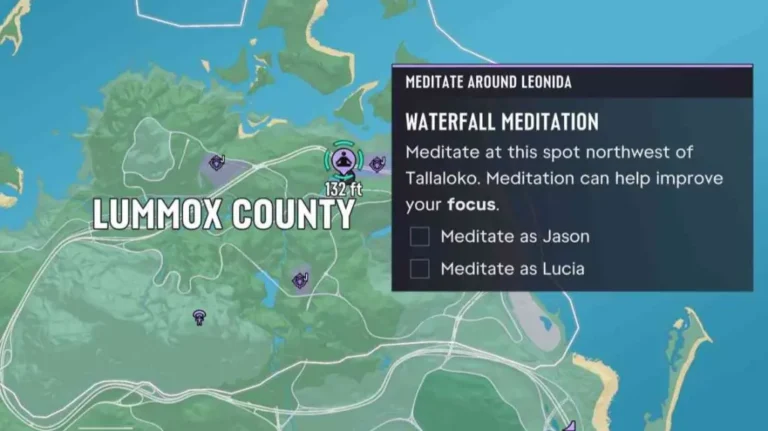
- 3D Map Rotation: changes how the map rotates when you move its camera.
- Aircraft Movement: inverts the vertical movement used while flying.
These GTA 6 inverted controls are separate, which is the most useful thing to know about them. If spinning the map feels odd but the regular camera is fine, change 3D Map Rotation. If an aircraft is pitching the opposite way to what you’re used to, check Aircraft Movement. You don’t have to compromise the rest of your setup.
The GTA 6 inverted controls menu shows descriptions alongside its options, and they’re worth reading. An inverted setting is one of those things that can be described in opposite ways depending on whether you think of the stick as moving a camera or tilting your character’s head. The menu’s explanation is clearer than relying on the word ‘inverted’ alone.
Why Are GTA 6 Flying Controls Inverted?
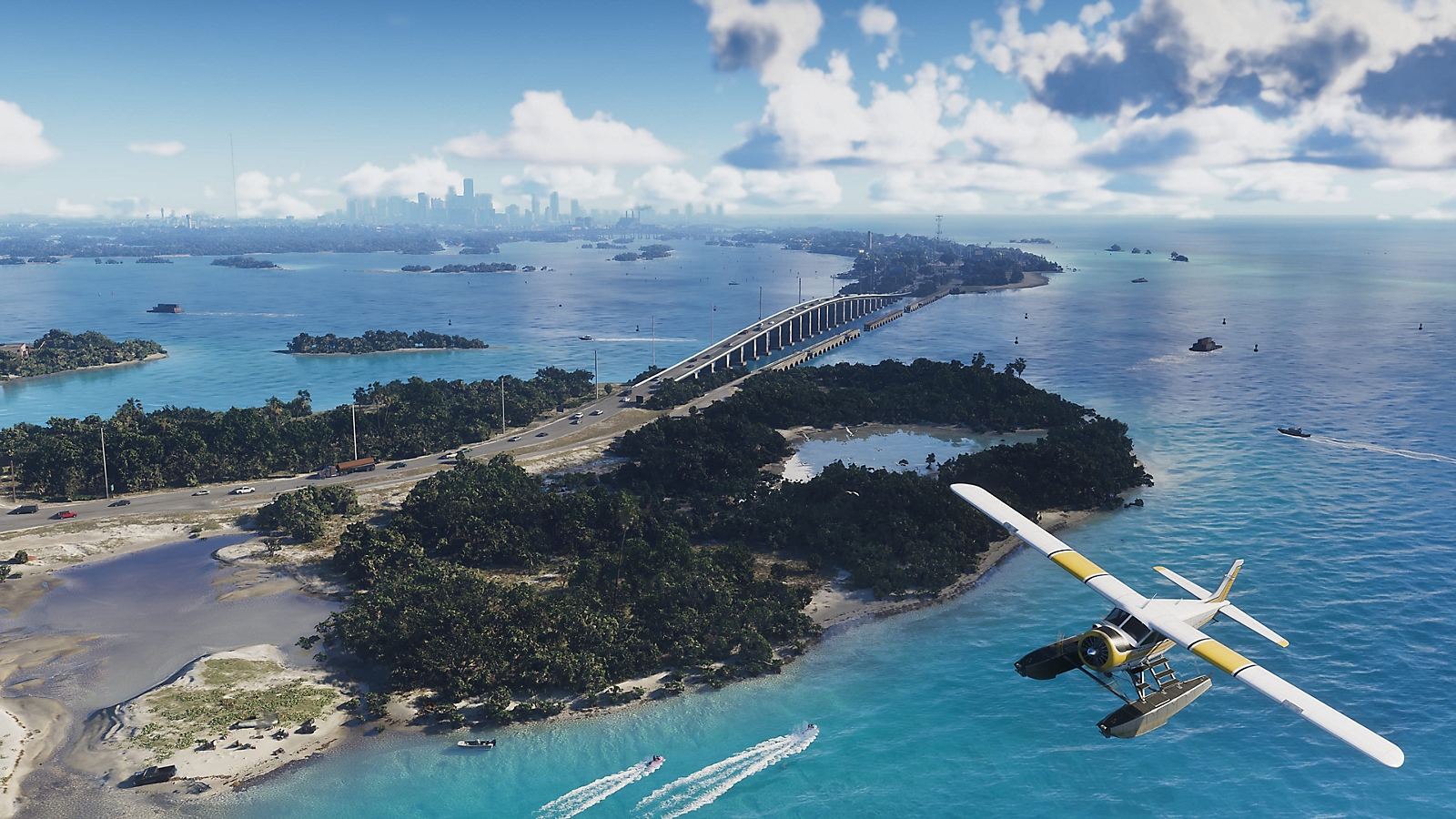
With GTA 6 inverted controls, piloting an aircraft can feel different from pointing a camera. Many flight games use the convention that pulling the stick back raises the nose, while pushing forward lowers it. That’s familiar to some players and deeply uncomfortable to others, especially anyone used to ordinary third-person camera controls.
In GTA 6, aircraft vertical movement is handled separately. If flying feels reversed, open Controller > Inverted Controls and check Aircraft Movement. On early PS5 settings menus this option appears enabled by default, though you should trust the value shown on your own console rather than treating someone else’s setup as fixed.
After changing GTA 6 inverted controls for flying, take off somewhere with room to manoeuvre. Try a gentle climb and descent before committing to a tight landing. Keep the default game prompts visible until you’re confident the aircraft moves where you expect.
Changing Look Sensitivity Is a Different Fix
Sometimes the camera isn’t backwards at all; it’s simply turning too quickly. The Controller tab has separate Aim & Look Sensitivity controls. These let you adjust how quickly the view responds and how aiming feels, without changing the direction of movement.
If you can look up and down correctly but keep overshooting targets, lower the relevant sensitivity rather than toggling inversion. If the camera responds slowly and you find yourself pushing the stick all the way to turn around, try increasing it a little. Change one control at a time, then play for a minute before deciding.
How to Reset GTA 6 Inverted Controls
Changed too many things? Open Settings again, highlight the option you want to undo and look at the bottom of the screen for Restore Default. Rockstar also provides a broader Restore All control, but it’s better to avoid resetting every preference when only one stick direction is wrong.
You can change GTA 6 inverted controls without restarting the story, reinstalling the game or making a new save. They’re ordinary settings, and there’s no reward for wrestling with a camera that doesn’t suit you. Get the direction comfortable first, then tackle sensitivity or aircraft controls separately.
Do Inverted Camera Settings Affect the GTA 6 Map?
No need to make the map match the camera. The 3D Map Rotation entry is there precisely because map handling can be adjusted on its own. If normal movement and aiming feel right but exploring the map is frustrating, GTA 6 inverted controls let you leave Look alone and work with the map setting instead.
That separation is what makes GTA 6 inverted controls more flexible than a single global toggle. Whether you’re exploring the streets, lining up a shot or trying not to crash a plane, you can tune the specific movement that feels wrong and keep everything else familiar.
Official source: Rockstar Games Support, Grand Theft Auto VI Settings.